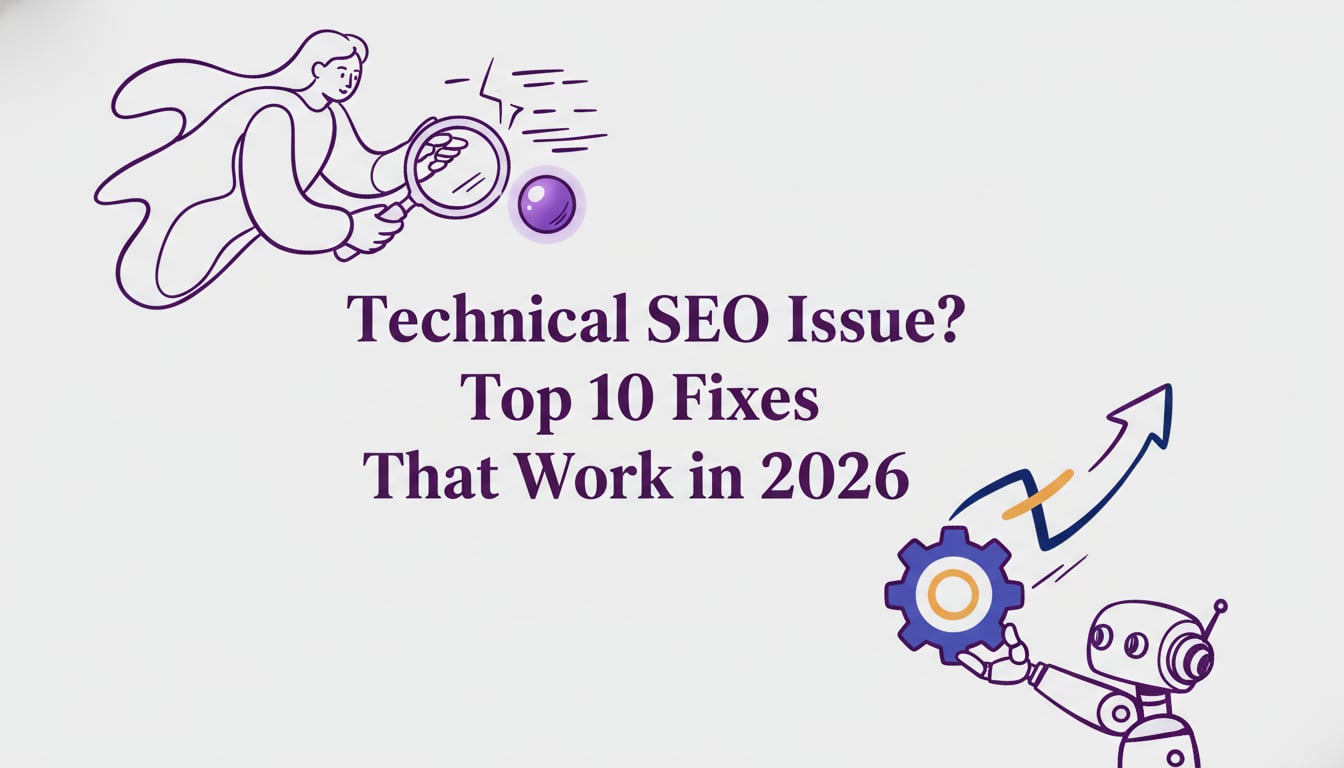
Your content could be the best in the world, your keywords perfectly chosen, and your strategy flawless. But if search engine crawlers can’t find, understand, or index your pages properly, you’re invisible. This is the silent killer of organic growth: the unresolved technical SEO issue. These problems operate behind the scenes, sabotaging your efforts without ever showing up in a marketing report. The good news is that diagnosing and fixing the most common issues is achievable, and it creates the stable foundation all other SEO success is built on.
What Is Technical SEO?
Technical SEO refers to the process of optimizing your website’s infrastructure so search engines can crawl and index it effectively. It’s not about the content itself, but about the platform that delivers it. Think of it as building a house with clear hallways, labeled doors, and a solid foundation. If Google’s crawlers (or bots) can’t navigate the hallways, they’ll never see the beautifully decorated rooms (your content).
The scope of technical SEO includes:
- Crawlability and Indexability
- Site Speed and Performance (Core Web Vitals)
- Mobile Friendliness
- Site Architecture and URL Structure (plan it with content mapping)
- Structured Data (Schema Markup — start with Author Schema)
- Website Security (HTTPS)
- Duplicate Content Management
Why Run a Technical SEO Audit Before Any Fixes
Jumping straight into fixing what you think is wrong is a recipe for wasted time. A technical SEO audit is the diagnostic phase. It’s the MRI you get before the surgery. For a step-by-step process, use our Technical SEO Audit guide. An audit provides a comprehensive baseline of your site’s health, helping you identify and prioritize every single technical SEO issue. Without an audit, you might spend weeks optimizing images for speed when the real problem is a rogue noindex tag hiding your most important pages from Google. A systematic audit ensures you fix the problems that have the biggest impact on your bottom line first.
How to Diagnose Technical SEO Issues
Diagnosing a technical SEO issue doesn’t always require deep coding knowledge. A few powerful tools can reveal most critical problems. These SEO automation tools can accelerate audits.
Your workflow should be straightforward:
- Crawl: Use a tool to simulate how a search engine sees your website.
- Analyze: Review the crawl data for common error patterns and warnings.
- Prioritize: Decide which issues to tackle first based on severity and impact.
- Fix: Implement the changes.
Key Diagnostic Tools:
- Google Search Console: This is non negotiable. It’s free data directly from Google. The Coverage report is your first stop to find pages with indexing problems. It will tell you exactly which pages Google is struggling with and why.
- Screaming Frog SEO Spider: A desktop application that crawls your site and gives you immense amounts of data on everything from broken links to response codes.
- Ahrefs or Semrush Site Audit: These all in one SEO platforms have excellent site audit tools that crawl your site on a schedule, track issues over time, and explain problems in plain language. For many small businesses, this is the most accessible starting point.
Many SMBs and startups find this diagnostic process time consuming. That’s why services that bundle technical fixes with content, like the AI SEO programs from Rankai, are so effective. They handle the detection and the fixing, letting you focus on your business.
Critical Risk Checks to Run First
Some technical problems are more dangerous than others. Before you dive deep, check for these site killers. Fixing a catastrophic technical SEO issue like these can have an immediate positive impact.
- Check your
robots.txtfile: This simple text file tells search engines which pages they can and cannot crawl. A single incorrect line, likeDisallow: /, can tell Google to ignore your entire website. - Scan for sitewide
noindextags: Anoindextag tells Google not to put a page in its index. Sometimes a developer might leave a site widenoindextag active after moving from a staging environment to a live site, effectively making the site invisible to search. - Review canonical tags: A canonical tag tells Google which version of a page is the “main” one to avoid duplicate content issues. Incorrectly implemented canonicals can cause your key pages to be ignored in favor of the wrong ones.
Technical SEO in 2026: Evolving Rules, Same Foundations
The world of SEO is always changing. Google’s mobile first indexing initiative is now complete for the whole web, meaning Google primarily uses the mobile version of your content for indexing and ranking. Core Web Vitals (LCP, INP, CLS) are established as important user experience signals. And now, optimizing for AI Overviews and new generative search experiences is on the horizon.
However, the foundation remains the same. Search engines will always need to find, crawl, and render your pages. A fast, secure, and logically structured website will always have an advantage. The core principles of resolving a technical SEO issue are timeless.
Top 10 Technical SEO Issue Fixes
Moving beyond foundational site settings, we now dive into the top 10 technical SEO issue fixes that are essential for maintaining search visibility. This collection groups together the most impactful corrections for crawlability and indexation errors, providing a concentrated checklist to ensure search engines can properly access your site. By systematically addressing these high-priority items, you eliminate the technical friction that often prevents high-quality content from reaching its full ranking potential.
1. Indexation Issues
If Google can’t index a page, it can’t rank or earn. Indexation problems crop up when bots are blocked, sitemaps are dirty, or content is too thin to warrant inclusion. SMBs running Shopify filters or WordPress archives often see “index bloat,” where the wrong pages get in and the right ones get ignored. Clean signals put your best URLs in front of searchers quickly.
Bottom line: Fix indexation and you unlock rankings you already earned.
- Diagnose it fast
- Run
site:yourdomain.comand compare counts to your real page inventory. - Check Google Search Console Pages (Page Indexing) for Excluded and Noindex.
- Inspect individual URLs with GSC’s URL Inspection to confirm crawl/index status.
- Crawl with Screaming Frog to surface noindex, canonicals, and blocked resources.
- Run
- Fix it now
- Remove accidental
noindextags (HTML head) and WordPress “Discourage search engines.” - Unblock key paths in
robots.txt; ensure CSS/JS render. - Clean your XML sitemap: drop 404s/redirects/noindex; resubmit in GSC.
- Strengthen thin pages (“Crawled – currently not indexed”) with content and internal links.
- Canonicalize Shopify filter URLs to the primary category/product.
- Re-test with GSC URL Inspection; request indexing for priority pages.
- Remove accidental
- Success looks like
- GSC shows “URL is on Google” for target pages and Excluded counts trend down.
- Tools
- Google Search Console (Indexing, URL Inspection), Screaming Frog, Robots.txt Tester, CMS indexing settings, Search Central docs.
2. Missing or Misconfigured robots.txt
Robots.txt is your crawler doorman. When it’s missing, bots wander into low-value areas; when it’s misconfigured, you can accidentally slam the door on the whole site. E-commerce filters and archive pages are notorious crawl traps. A precise file protects crawl budget and ensures Google renders pages the way users see them.
Bottom line: A single bad line in robots.txt can make your site disappear.
- Diagnose it fast
- Visit
yourdomain.com/robots.txtand confirm a 200 response (not 404). - In GSC, check Crawl Stats for fetch errors and Pages for “Blocked by robots.txt.”
- Scan for nuclear rules like
Disallow: /or blocked/css/and/js/. - Severity spikes if valid pages appear as “Excluded by robots.txt.”
- Visit
- Fix it now
- Create/edit
robots.txt(WordPress plugins; Shopifyrobots.txt.liquid). - Remove blanket
Disallow: /left from staging. - Allow critical assets:
Allow: /css/andAllow: /js/. - Add your XML sitemap path at the end.
- Validate with GSC’s Robots.txt Tester; redeploy and re-crawl.
- Create/edit
User-agent: *
Disallow: /search
Disallow: /cart
Allow: /css/
Allow: /js/
Sitemap: https://yourdomain.com/sitemap.xml
- Success looks like
- No key templates blocked; Crawl Stats stabilize; rendering matches live UI.
- Tools
- Google Search Console (Crawl Stats, Pages), TechnicalSEO robots.txt Generator, Screaming Frog, Google robots.txt specs.
3. Accidental or Misused Noindex/Robots Meta Tags
The noindex tag is an SEO kill switch. It’s great for internal pages but catastrophic for money pages. Migrations, template rollouts, or a forgotten “discourage search engines” toggle can quietly pull high-value URLs from the SERP. Platform-wide templates (Shopify, WordPress) make small mistakes scale fast.
Bottom line: Audit for noindex like your revenue depends on it, because it does.
- Diagnose it fast
- In GSC Pages, look for “Excluded by ‘noindex’ tag.”
- View source and search for
<meta name="robots" content="noindex">. - Check headers for
X-Robots-Tag: noindexwith an SEO toolbar. - Try
site:domain.com/full-url. Its absence often signals a block.
- Fix it now
- Remove
noindexmeta from templates or clearX-Robots-Tagat the server. - WordPress: uncheck “Discourage search engines” (Settings > Reading).
- Shopify: audit
theme.liquidfor conditional indexing logic. - Ensure
robots.txtallows crawling so Google can see the change. - Use GSC URL Inspection to Request Indexing on restored pages.
- Remove
- Success looks like
- GSC shows “URL is available to Google,” and pages reappear in site queries.
- Tools
- Google Search Console, Screaming Frog SEO Spider, Search Central robots meta, Robots.txt Tester.
4. Missing or Incorrect XML Sitemap
Your XML sitemap is the map that tells bots where your best content lives. When it’s missing, broken, or stuffed with junk (404s, redirects, noindex), discovery slows and orphan pages languish. New sites and large catalogs feel this pain most. A pristine sitemap points crawlers at revenue pages first.
Bottom line: Clean sitemaps accelerate discovery and keep crawl budget on target.
- Diagnose it fast
- Open
yourdomain.com/sitemap.xml; confirm it loads without errors. - In GSC Sitemaps, check status: “Success” vs “Couldn’t fetch/Could not be read.”
- Verify your robots.txt references the sitemap.
- Compare sitemap URL counts vs. Indexed to spot quality gaps.
- Open
- Fix it now
- Enable dynamic sitemaps via CMS (Shopify/Wix) or SEO plugins (WordPress/Rank Math).
- Purge 3xx/4xx, noindex, and non-canonicals from the file.
- Submit the clean sitemap to GSC and Bing Webmaster Tools.
- Reference the sitemap in robots.txt for broader engine discovery.
- Success looks like
- GSC shows “Success,” zero non-200s, and rising indexed counts for key templates.
- Tools
- Google Search Console (Sitemaps), Screaming Frog, Sitemaps.org protocol, CMS SEO settings.
5. Crawl Errors
Crawl errors mean Googlebot tried to fetch a page and failed (for example, due to server hiccups, firewall blocks, timeouts, or redirect loops). When bots can’t reach your content, they can’t index or rank it. Shopify API limits and aggressive WordPress security settings are common culprits. Fixing the plumbing restores discovery and protects crawl budget.
Bottom line: No fetch, no index. Stabilize infrastructure before chasing rankings.
- Diagnose it fast
- In GSC Pages, scan for “Server error (5xx)” and “Crawl anomaly.”
- Check GSC Crawl Stats for spikes in failed requests.
- Live-test with URL Inspection; watch rendering and HTTP status.
- Review Host Status for DNS/connectivity warnings.
- Fix it now
- Allow render-critical assets in
robots.txtso Google can fully render. - Whitelist verified bots in Cloudflare/Wordfence; throttle rate limits.
- Upgrade hosting or disable heavy plugins causing timeouts.
- Eliminate redirect loops; link directly to the final 200 URL.
- Ensure WordPress isn’t discouraging indexing.
- In GSC, Validate Fix once failures are resolved.
- Allow render-critical assets in
- Success looks like
- Crawl Stats errors normalize; URL Inspection returns 200 with rendered content.
- Tools
- Google Search Console, Screaming Frog, Robots.txt Tester, HTTPStatus.io, CMS security settings, PageSpeed Insights.
6. Staging Site Indexation
When staging environments leak into Google, you’ve effectively published a duplicate of your site. Rankings get split, test features go public, and users land on broken experiences. Teams pushing frequent updates on WordPress, Shopify, or Magento are especially exposed. Shut the door quickly and clean up any indexed traces.
Bottom line: Treat staging like a vault—locked from bots and users.
- Diagnose it fast
- Try
site:staging.yourdomain.com(and other test subdomains). - In GSC Pages, look for unfamiliar subdomains or canonical oddities.
- View source to confirm a
<meta name="robots" content="noindex">is present. - High severity if staging URLs exceed ~10% of total indexed pages.
- Try
- Fix it now
- Add HTTP Basic Auth (401) to block everything at the server level.
- WordPress: enable “Discourage search engines.” Shopify: add conditional noindex in
theme.liquid. - Use GSC Removals to purge visible staging URLs.
- Set absolute canonicals from staging to production as an extra safety net.
- Re-crawl staging to verify 401 or noindex persists.
- Success looks like
- No staging URLs in site queries; GSC shows zero active removals needed.
- Tools
7. Headless CMS/JavaScript Rendering Issues
Headless stacks (React, Vue, Shopify Hydrogen) often ship a near-empty HTML shell and rely on JavaScript to fetch content. If Google can’t render quickly or correctly, it misses that content, and your rankings suffer. The “rendering gap” hits JS-heavy SaaS and headless ecommerce especially hard.
Bottom line: Deliver meaningful HTML first; enhance with JS second.
- Diagnose it fast
- Compare View Source vs. Inspect—does key content exist in raw HTML?
- In GSC URL Inspection, review rendered HTML and the screenshot.
- Disable JavaScript in your browser—if content vanishes, bots may see nothing.
- Check DevTools Console for hydration mismatch errors.
- Fix it now
- Switch to SSR/SSG (Next.js/Nuxt) for immediate HTML.
- Use plain
<a href>links for nav; avoid JS-only routing. - If replatforming isn’t feasible, add dynamic rendering via Prerender.io.
- Resolve hydration issues by aligning server/client data and markup.
- Validate when GSC shows rich rendered HTML with no blocked resources.
- Success looks like
- Key content appears in raw or rendered HTML; discovery and indexation speeds up.
- Tools
- Google Search Console (URL Inspection), Rich Results Test, Screaming Frog (JS Rendering), Google JS SEO basics.
8. Improper Canonicalization (incl. incorrect rel=canonical and multiple URL versions/homepage)
Canonical tags tell search engines which duplicate to rank. When versions proliferate (HTTP/HTTPS, WWW/non-WWW, trailing slashes, Shopify collection paths), link equity fragments and Google picks its own “canonical.” That’s how cannibalization and crawl waste begin. Consolidation funnels all signals into the strongest URL.
Bottom line: One page, one URL, all signals.
- Diagnose it fast
- In GSC Pages, scan for “Duplicate, Google chose different canonical.”
- Run the Quad Test: HTTP↔HTTPS and WWW↔non-WWW should 301 to one home.
- View source for a self-referencing
rel="canonical"on canonical pages. site:domain.comwith high counts or odd variants hints at duplication.
- Fix it now
- Enforce a single primary (HTTPS, preferred host) via server/CMS.
- Add self-referencing canonicals sitewide (Yoast on WordPress;
theme.liquidon Shopify). - Canonicalize faceted/filter pages to parent categories.
- 301
/home,/index.html, and other variants to the root. - Update internal links and sitemaps to canonical versions only.
- Success looks like
- GSC reports fewer Google-selected canonicals; backlinks concentrate on the right URL.
- Tools
- Google Search Console (Indexing), Screaming Frog, Ahrefs Redirect Checker, Google duplicate URL guide.
9. Unoptimized Faceted Navigation
Filterable grids (size, color, price) can explode into millions of low-value URLs. Bots follow those parameters, waste crawl budget, and index near-duplicates while core category and product pages languish. Directories and ecommerce platforms suffer most. Tame the parameters and refocus signals on high-intent pages.
Bottom line: Don’t let filters outrank your categories.
- Diagnose it fast
site:yourdomain.com inurl:?to gauge indexed parameter URLs.- In GSC Pages, inspect Excluded counts and parameter patterns.
- Crawl with Screaming Frog; 10× URLs vs. product count signals a trap.
- Check if filtered pages carry self-referencing canonicals (a red flag).
- Fix it now
- Canonical filtered URLs back to the clean category page.
- Disallow low-value parameters (price, sort, session IDs) in
robots.txt. - Add
noindex, followto already-indexed filters to clean them out. - Shift to AJAX filtering that doesn’t spawn crawlable URLs.
- Use WordPress filter plugins or Shopify
robots.txt.liquidto enforce rules.
- Success looks like
- Indexed URL counts shrink; categories/products gain impressions and clicks.
- Tools
- Google Search Console, Screaming Frog SEO Spider, Faceted nav guidance, JetOctopus, CMS filter settings.
10. Incorrect Language/Hreflang Implementation
Hreflang tells Google which language/region version to serve. Get it wrong and markets cannibalize each other, with wrong currencies and languages showing to the wrong users. Multi-region setups on Shopify Markets or multi-site WordPress are fragile; reciprocity and correctness matter.
Bottom line: Every locale must reference every other locale, cleanly and consistently.
- Diagnose it fast
- View source: confirm valid ISO language (639-1) and region (3166-1 Alpha-2) codes.
- In GSC (Legacy) International Targeting, check for “No return tag.”
- Ensure each page has a self-referencing canonical.
- Spot if global domains outrank local folders in-market.
- Fix it now
- Map locale clusters so every page has a 1:1 counterpart per market.
- Implement reciprocal hreflang on each page—or move tags to the XML sitemap at scale.
- Add
x-defaultfor unmatched users. - Use WPML (WordPress) or Shopify Markets to automate parity and tagging.
- Re-crawl and fix all return-tag errors.
- Success looks like
- Correct regional versions rank locally; bounce rates drop and currency/language match.
- Tools
- Google International SEO Guide, Aleyda Solis’s Hreflang Generator, TechnicalSEO.com Checker, Screaming Frog SEO Spider.
From Findings to Fixes: Prioritization and Rollout
Once your audit reveals a list of problems, you need a plan. Don’t try to fix everything at once. Use a simple framework to prioritize: Impact versus Effort.
- High Impact, Low Effort: Fix these immediately. Examples include removing an incorrect
noindextag or fixing a criticalrobots.txtblock. - High Impact, High Effort: These are your main projects. This could involve a major site speed overhaul or a complex site migration. Plan these carefully.
- Low Impact, Low Effort: Chip away at these when you have time. Examples include adding missing alt text to a few images or cleaning up a few redirect chains.
- Low Impact, High Effort: Put these at the bottom of the list, or ignore them for now.
For businesses without a dedicated developer, tackling a high effort technical SEO issue can be daunting. A done for you service that includes technical fixes provides a clear path to resolution without the need to hire a specialist. With a clear process like the one offered by Rankai, you get expert prioritization and execution baked into one simple plan.
Ongoing Maintenance, Cadence, and Migration Safeguards
Technical SEO is not a one time project; it’s ongoing maintenance, like changing the oil in your car. Websites are dynamic. New pages are added, plugins are updated, and code changes, all of which can introduce a new technical SEO issue.
We recommend a mini audit at least quarterly. A monthly check in using Google Search Console is even better.
A special warning for website migrations or redesigns: this is the most dangerous time for your SEO. A study once found that even professional marketers report losing significant traffic after a site migration. A detailed 301 redirect map and a full technical SEO pre launch and post launch checklist are absolutely critical to avoid catastrophic traffic loss.
Conclusion: Fix Foundations First for Durable SEO Gains
Focusing on content without addressing your website’s technical health is like trying to fill a leaky bucket. You can pour all the resources you want into it, but you’ll never see the results you expect. Every unresolved technical SEO issue creates friction for search engines and users, limiting your growth potential.
By regularly auditing your site, prioritizing fixes based on impact, and addressing the foundational elements of crawlability, indexability, and speed, you create an environment where your content can finally thrive. Building on a solid technical foundation is the only way to achieve durable, long term gains in organic traffic.
Ready to fix your site’s foundation and accelerate your growth without the headache? Book a demo with Rankai to see how our AI assisted, human expert guided service handles all your technical SEO fixes and content creation for one flat monthly fee.
FAQ
What is the most common technical SEO issue?
Slow page speed is arguably one of the most common and impactful issues. With mobile first indexing, speed is critical for both user experience and rankings. A Google study found that the probability of a user bouncing increases by 32% as page load time goes from 1 to 3 seconds.
Can I do technical SEO myself?
Yes, you can fix many basic issues yourself using tools like Google Search Console and a CMS plugin like Yoast or Rank Math for WordPress. If you’re going the DIY route, follow this step-by-step SEO guide.
How long does it take to see results after fixing technical issues?
It depends on the issue and how quickly Google recrawls your site. For a critical error like removing a noindex tag, you could see pages re indexed and ranking within days. For improvements like site speed, it may take several weeks or longer for Google to re-evaluate your pages and for the effects to become visible in rankings. To track progress, use our guide to measuring SEO results.
Is technical SEO a one time fix?
No, it is an ongoing process. Websites are constantly updated with new content, plugins, and design changes. Regular audits (at least quarterly) are necessary to catch and fix any new technical SEO issue that arises to maintain your site’s health and performance.