This guide shows you how to add RankAI’s technical SEO script to your WordPress site. The script runs in the background on your site and helps search engines understand your pages better. You don’t need any coding experience. We'll use a free plugin and paste one block of code.
Where to get your code
In your RankAI project, go to Technical SEO and look for the Apply Changes button at the top right and Click it. Select WordPress as the provider. snippet of code that looks like the one below. Copy the whole thing. Your version will have your own project ID in it.
<script src="https://rankai.ai/apply.js" data-rankai-id="YOUR_PROJECT_ID" crossorigin="anonymous" defer></script>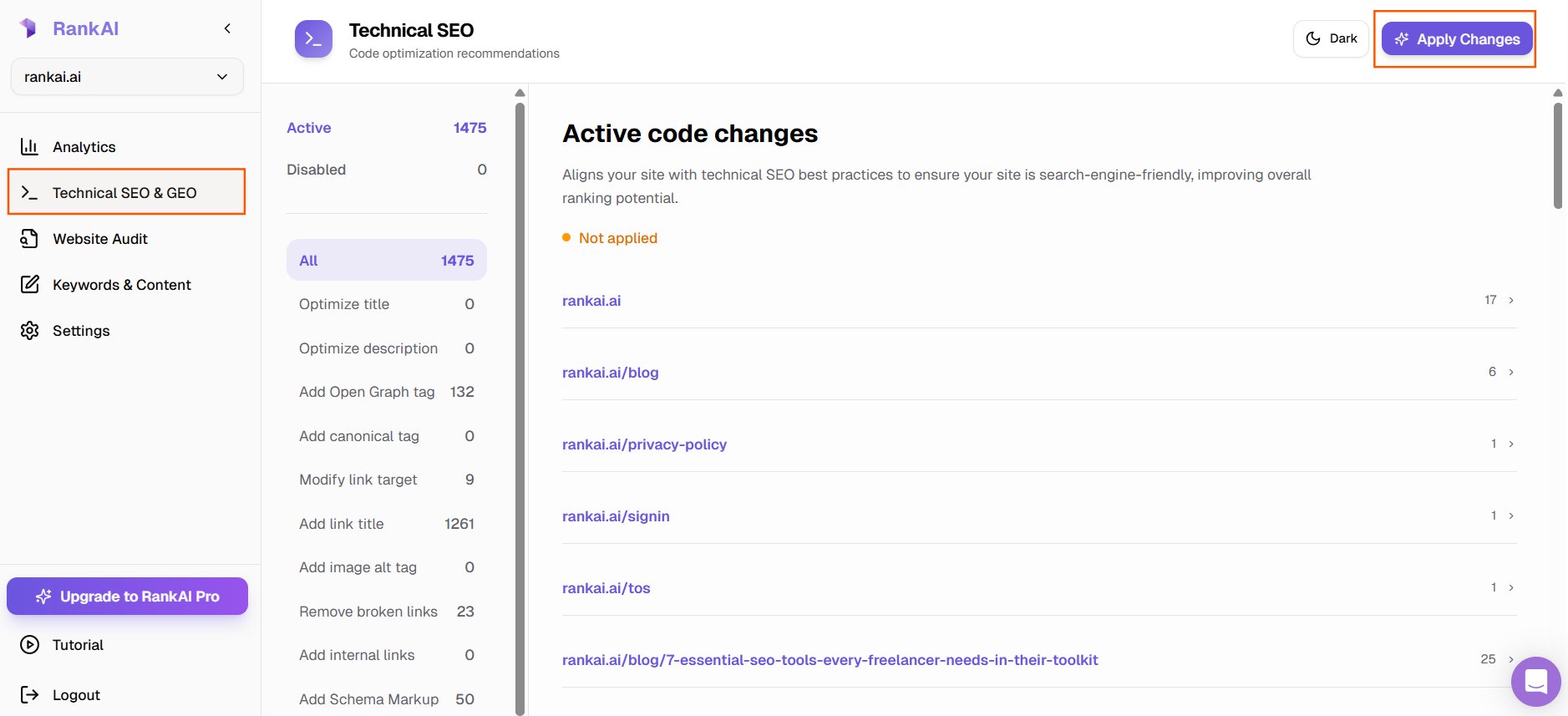
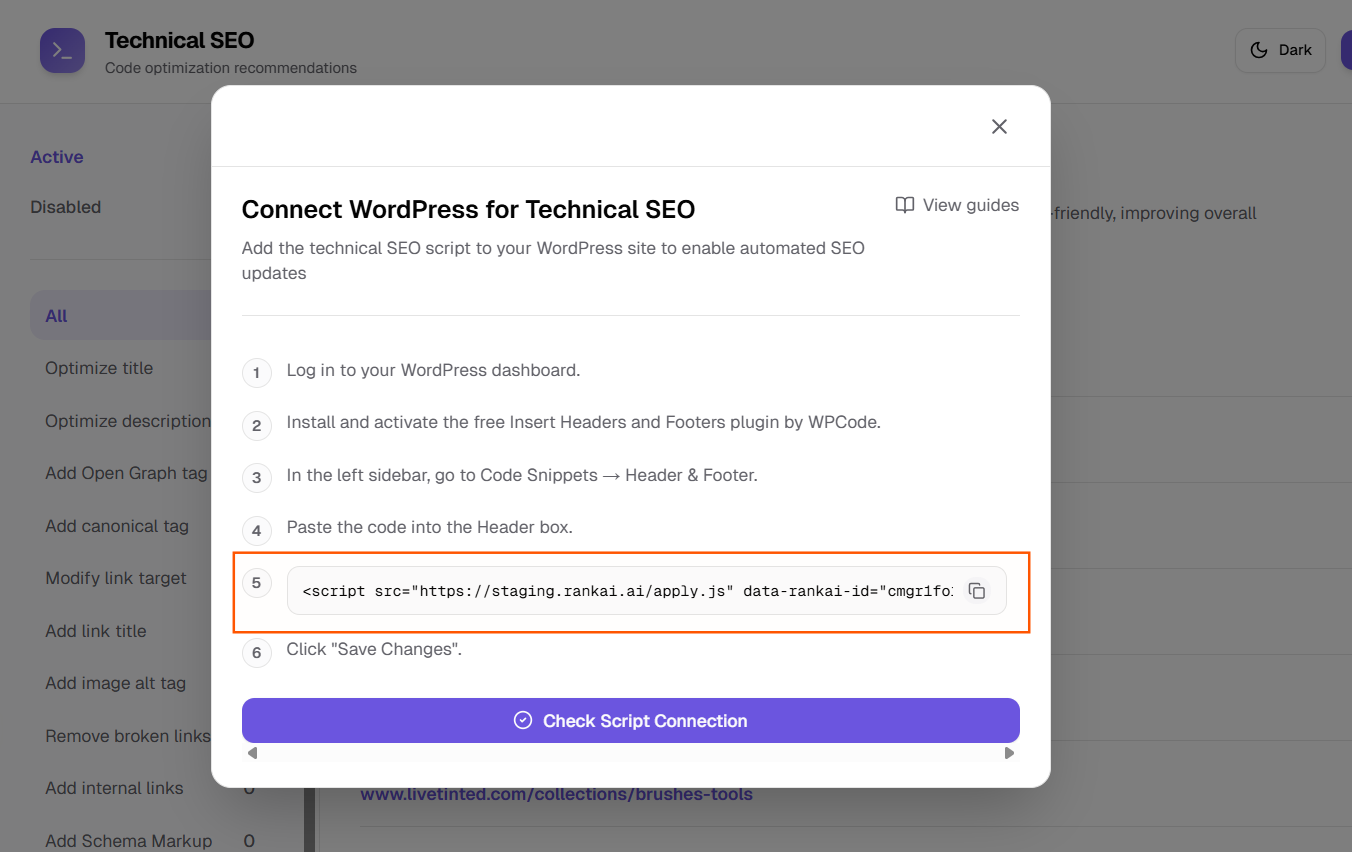
Keep that code handy. In the next steps we’ll add it to your WordPress site so it loads on every page.
Step 1: Log in to your WordPress dashboard
Open your website in the browser and go to the admin area. Usually you do this by typing yourdomain.com/wp-admin in the address bar (replace “yourdomain.com” with your actual site address). If your site has a “Log in” link in the menu or footer, you can click that instead.
Enter the username and password you use to manage your site. Click Log In. You should land on the main dashboard. That's the screen with the left sidebar and options like Posts, Pages, and Plugins.
Step 2: Install and activate the Insert Headers and Footers plugin
We’ll use a free plugin so we can add the RankAI script without editing theme files. In the left sidebar, click Plugins.
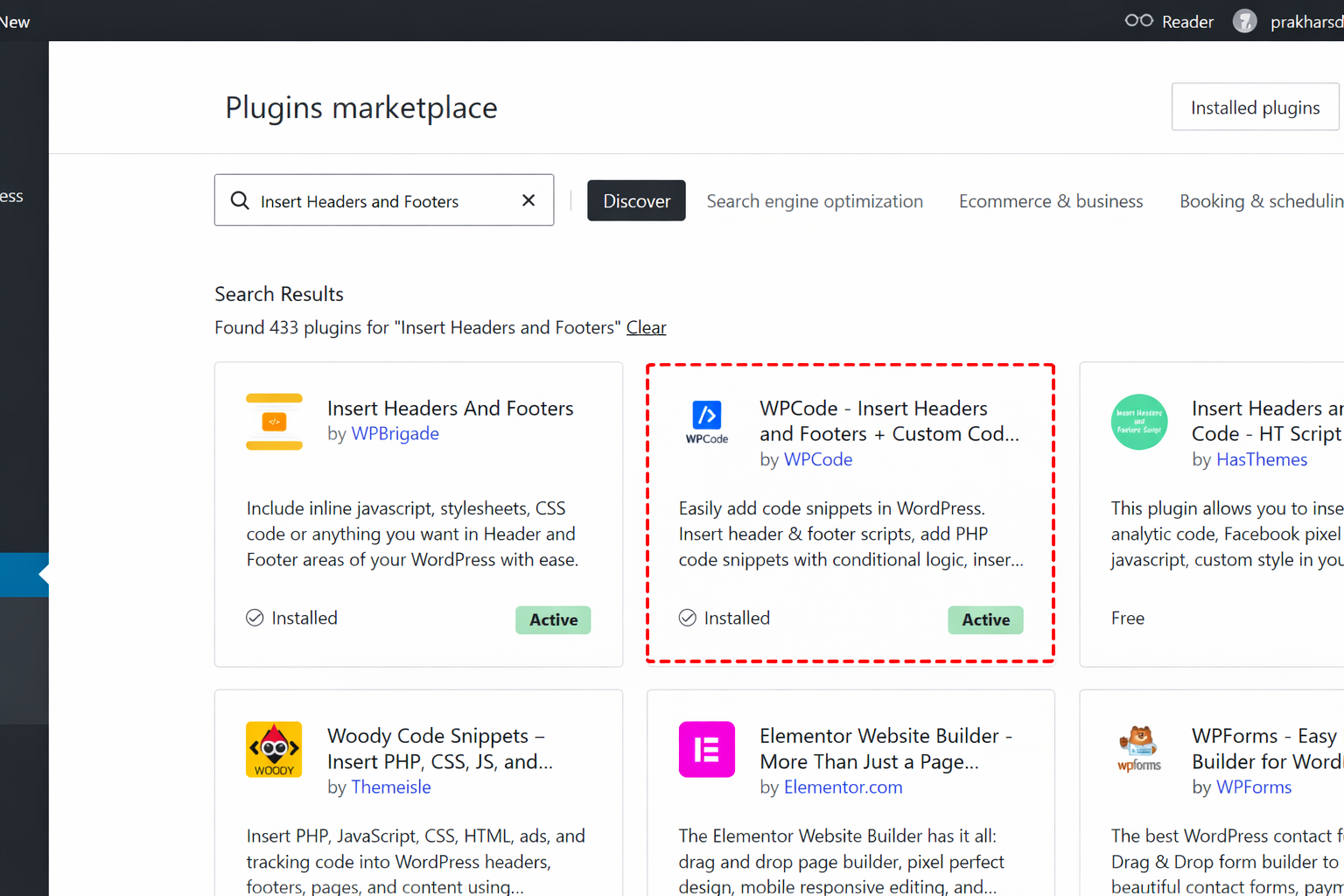
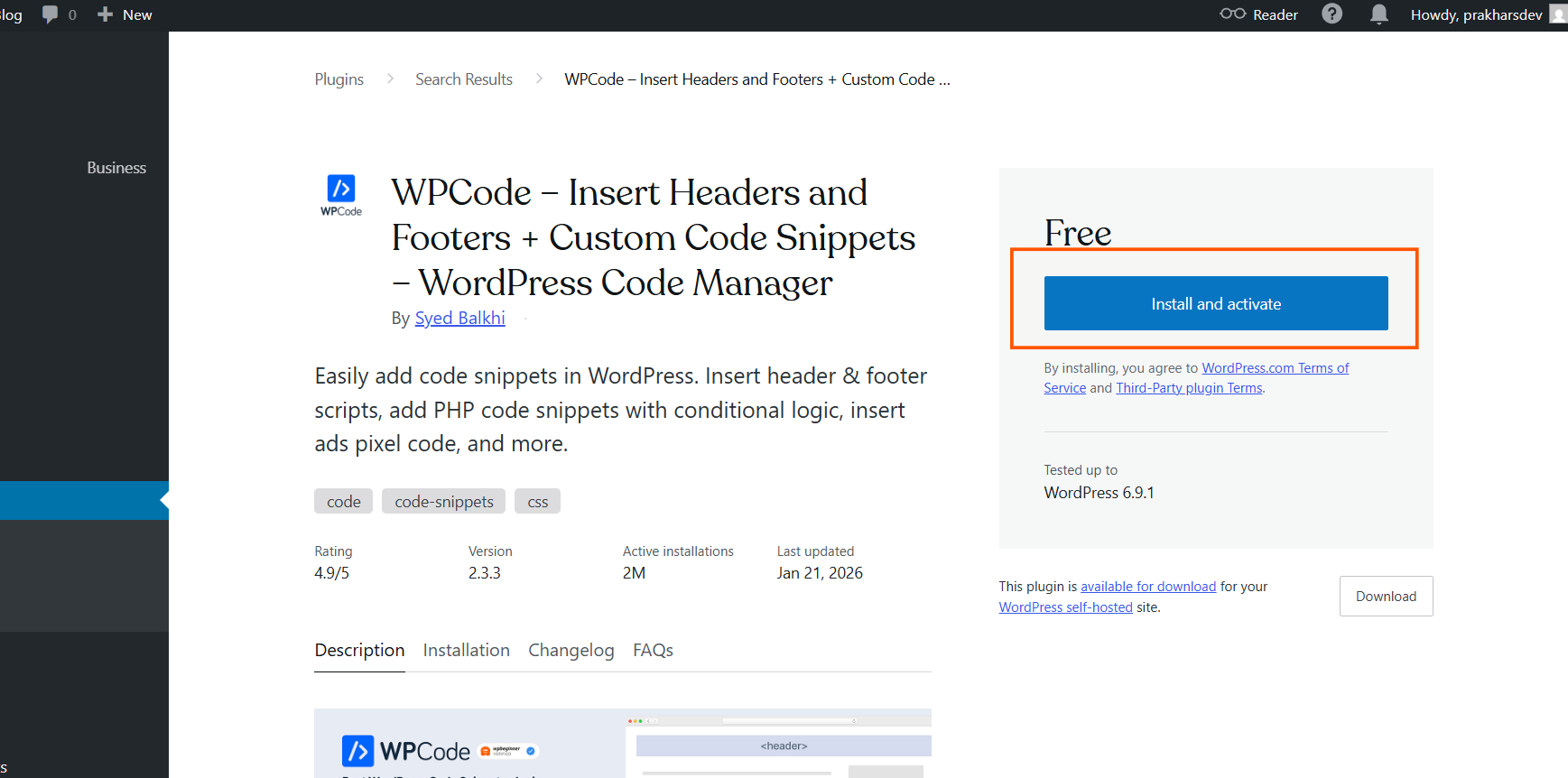
On the page opened, in the search box, type Insert Headers and Footers or WPCode. Look for the plugin named “Insert Headers and Footers” by WPCode. Click Install Now next to it. When the button changes to Activate, click Activate.
Once it’s activated, you’re ready for the next step. You might see a welcome message from WPCode. You can close it or skip it; we only need the Header & Footer part.
Step 3: Open the Header & Footer settings
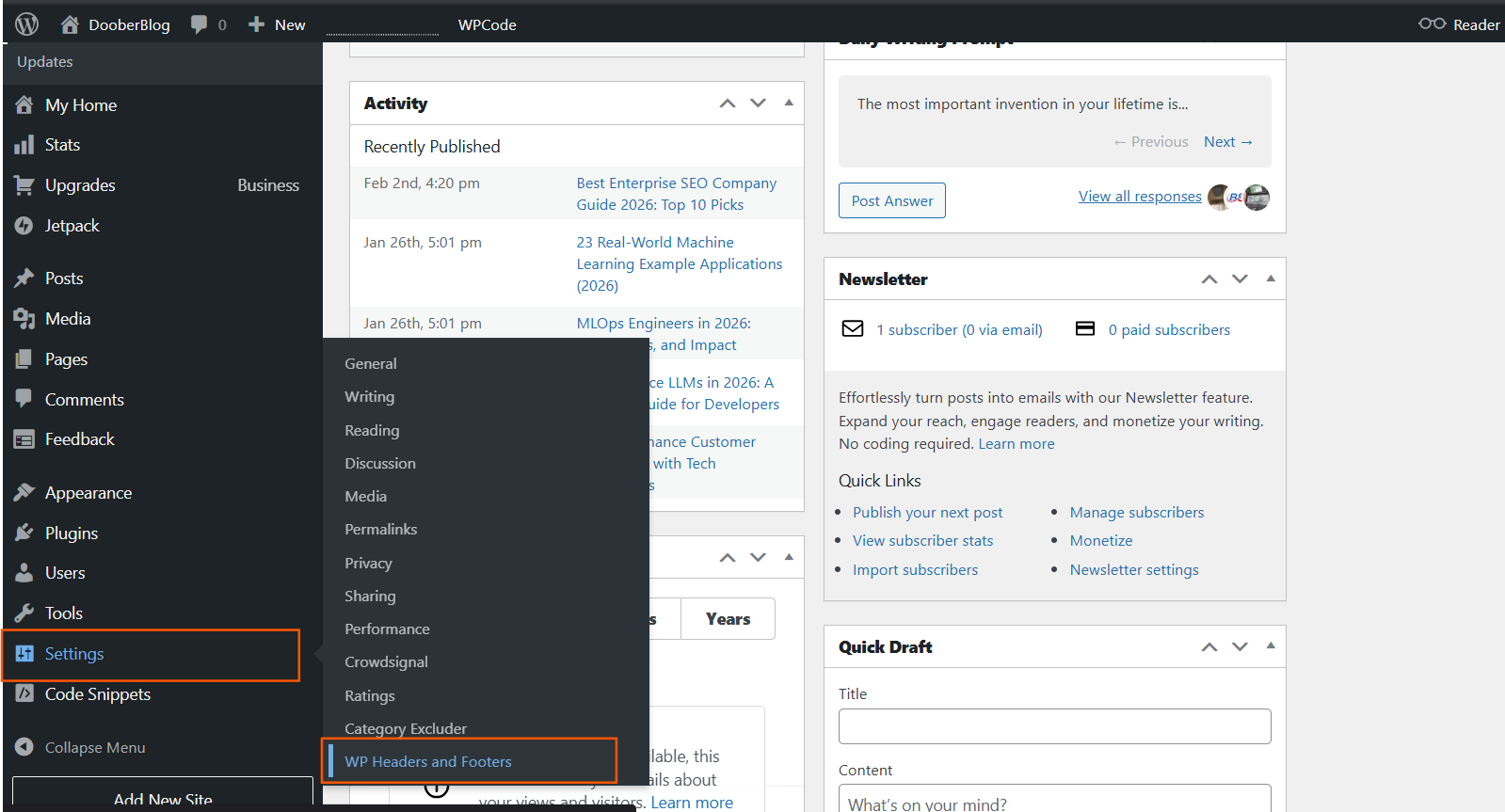
In the left sidebar, look for Settings. Hover over it, then click WP Headers and Footers.
You’ll see a page with two main boxes: one for Header and one for Footer. We need the Header box. That's where the RankAI script should go so it loads at the top of your pages.
Step 4: Paste the code into the Header box
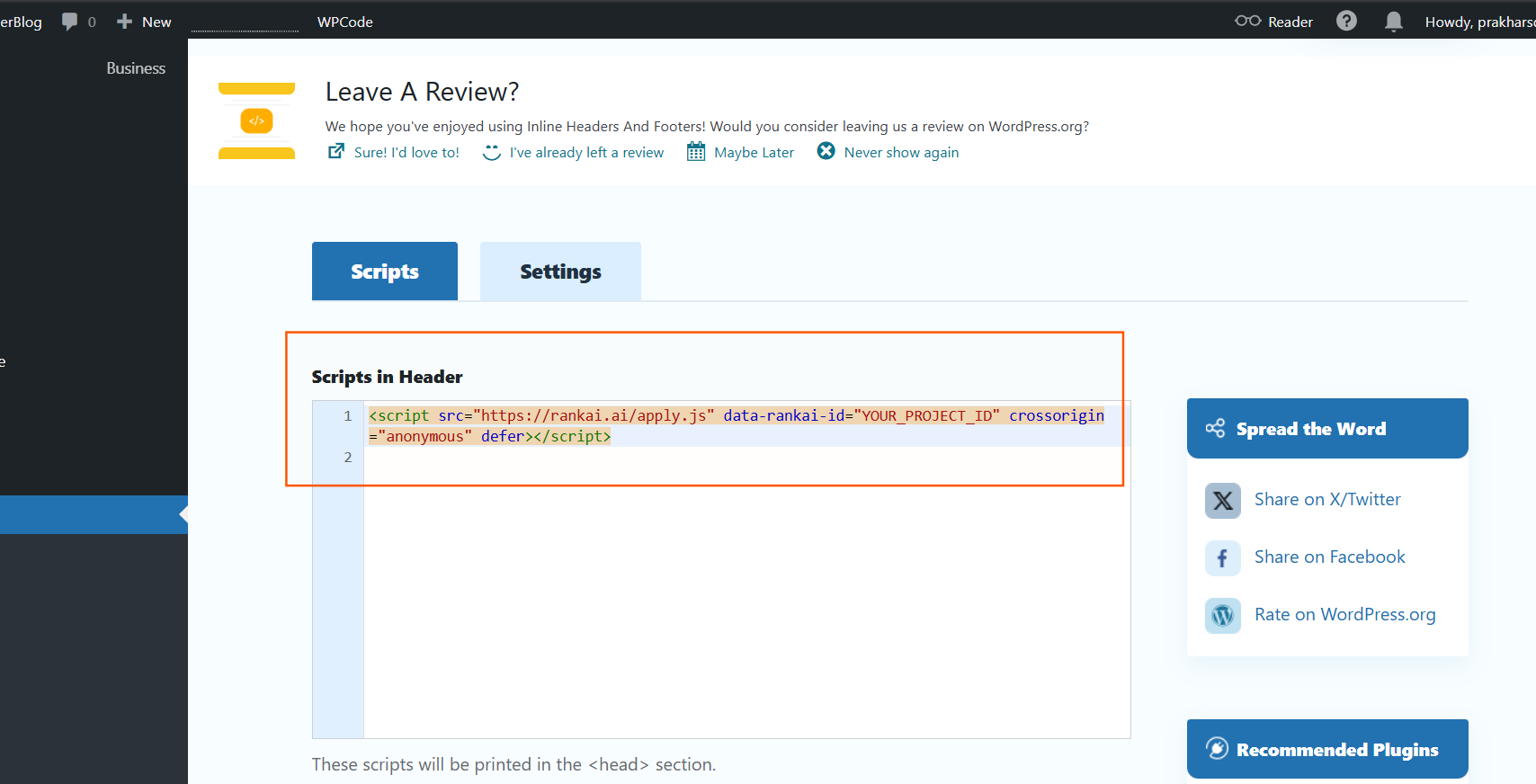
Click inside the Header box (the top one). Paste the code you copied from RankAI. You can use right‑click → Paste or the keyboard shortcut (Ctrl+V on Windows, Cmd+V on Mac).
Make sure you paste the entire line, from <script to </script>. Don’t change or remove any part of it, and don’t put anything else in the Header box unless you already had other code there (in that case, paste the RankAI code on a new line).
Leave the Footer box empty for this script. Only the Header box is needed.
Step 5: Save your changes and check
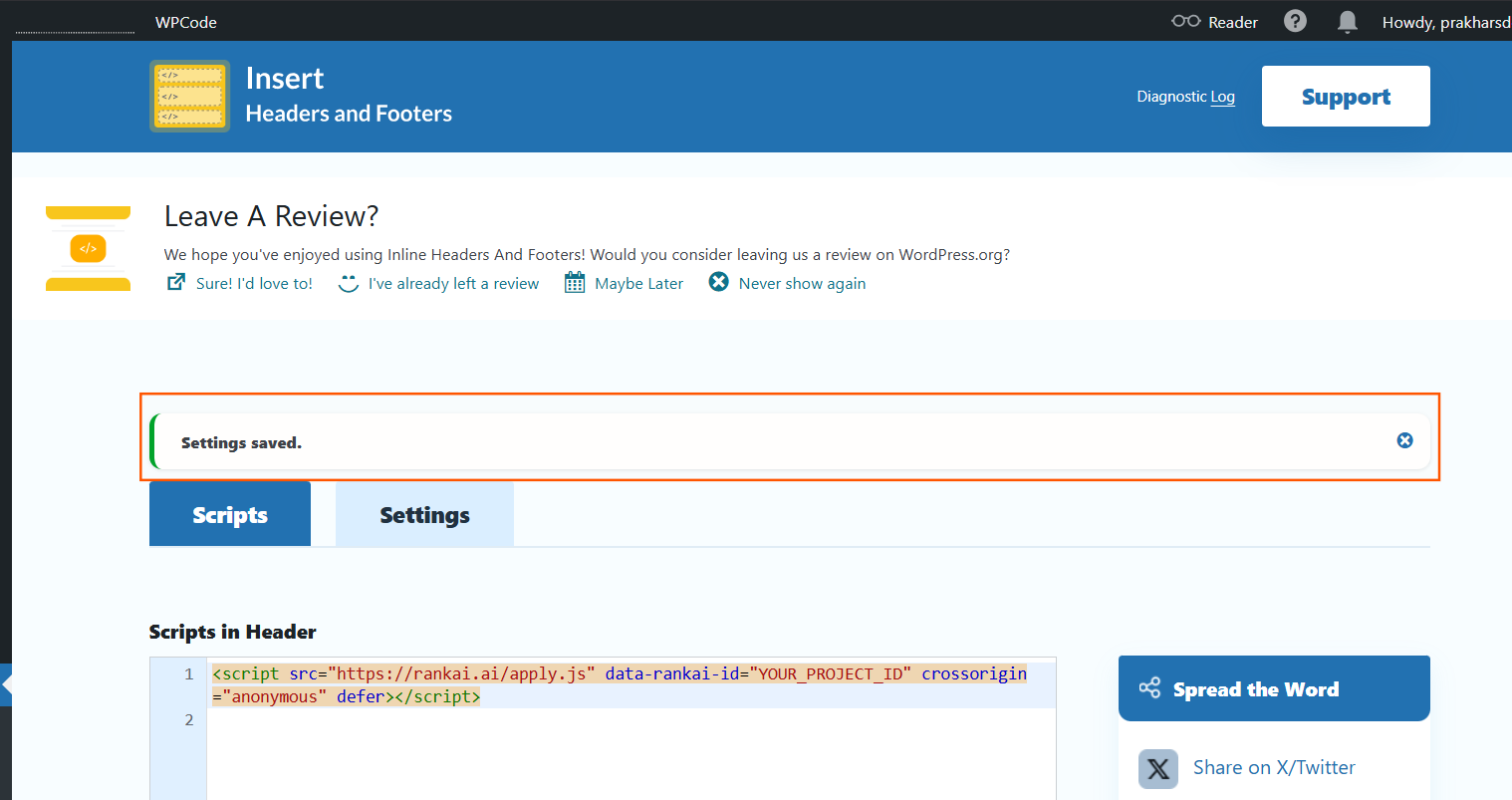
Scroll down to the bottom and click the Save Changes button. Wait until you see a message that the settings were saved (often a green or blue notice at the top of the page).
That’s it. The RankAI script is now added to your site. It will load on every page automatically. You don’t need to do anything else in WordPress. RankAI will use it to apply the technical SEO settings you’ve chosen in your project.
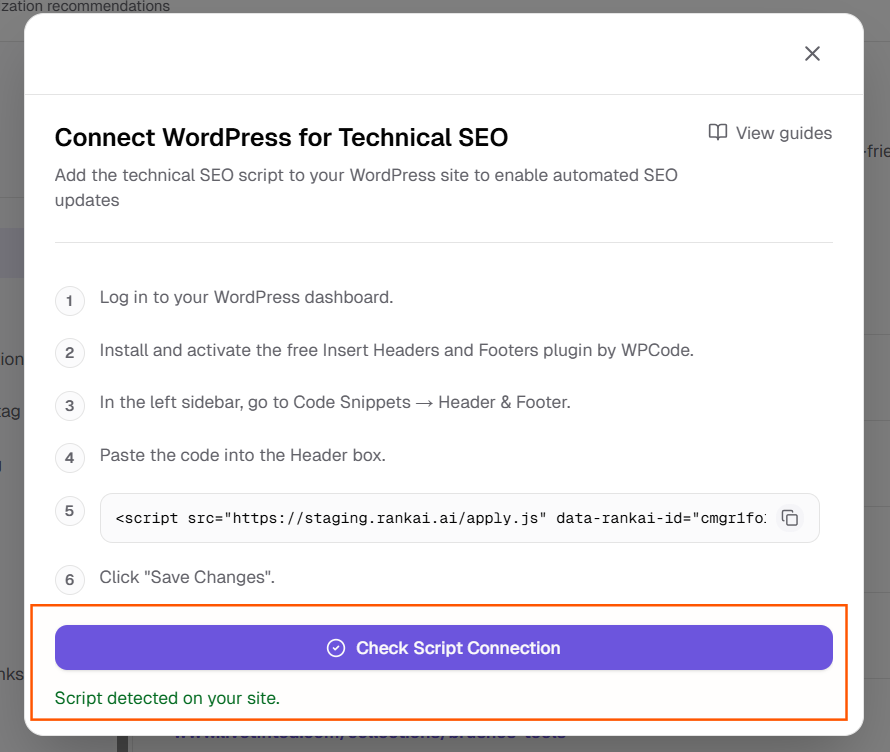
Now go to RankAI tab again and click Check Script Connection. If you see a text in green saying Script detected on your site, the script is connected correctly.
Quick checklist
- Logged in to the WordPress dashboard
- Insert Headers and Footers plugin installed and activated
- Opened Code Snippets → Header & Footer
- Pasted the full script into the Header box (not the Footer)
- Clicked Save Changes
FAQ
I use a different plugin for adding code. Can I use that instead?
Yes. Any plugin that lets you add code to the <head> section of your site (the “header”) will work. The steps will be similar: open the plugin’s settings, find the header or “before </head>” area, paste the RankAI script there, and save.
Should the script go in the Header or the Footer box?
Use the Header box. That way the script loads at the top of the page as intended. Putting it in the footer can sometimes delay it or change how it runs.
How do I know if it’s working?
After saving, open your website in a new tab (the public site, not the dashboard). You can use your browser’s “View page source” option (usually right‑click → View Page Source) and search for “rankai” or “apply.js”. If you see the script in the source code, it’s loaded correctly.
Where can I get more support?
Contact your RankAI account team or check the help section in your dashboard.