This guide walks you through connecting your Shopify store to RankAI so we can publish and manage your SEO blog content. You’ll need access to your Shopify Admin portal and your RankAI dashboard.
Where to start in RankAI
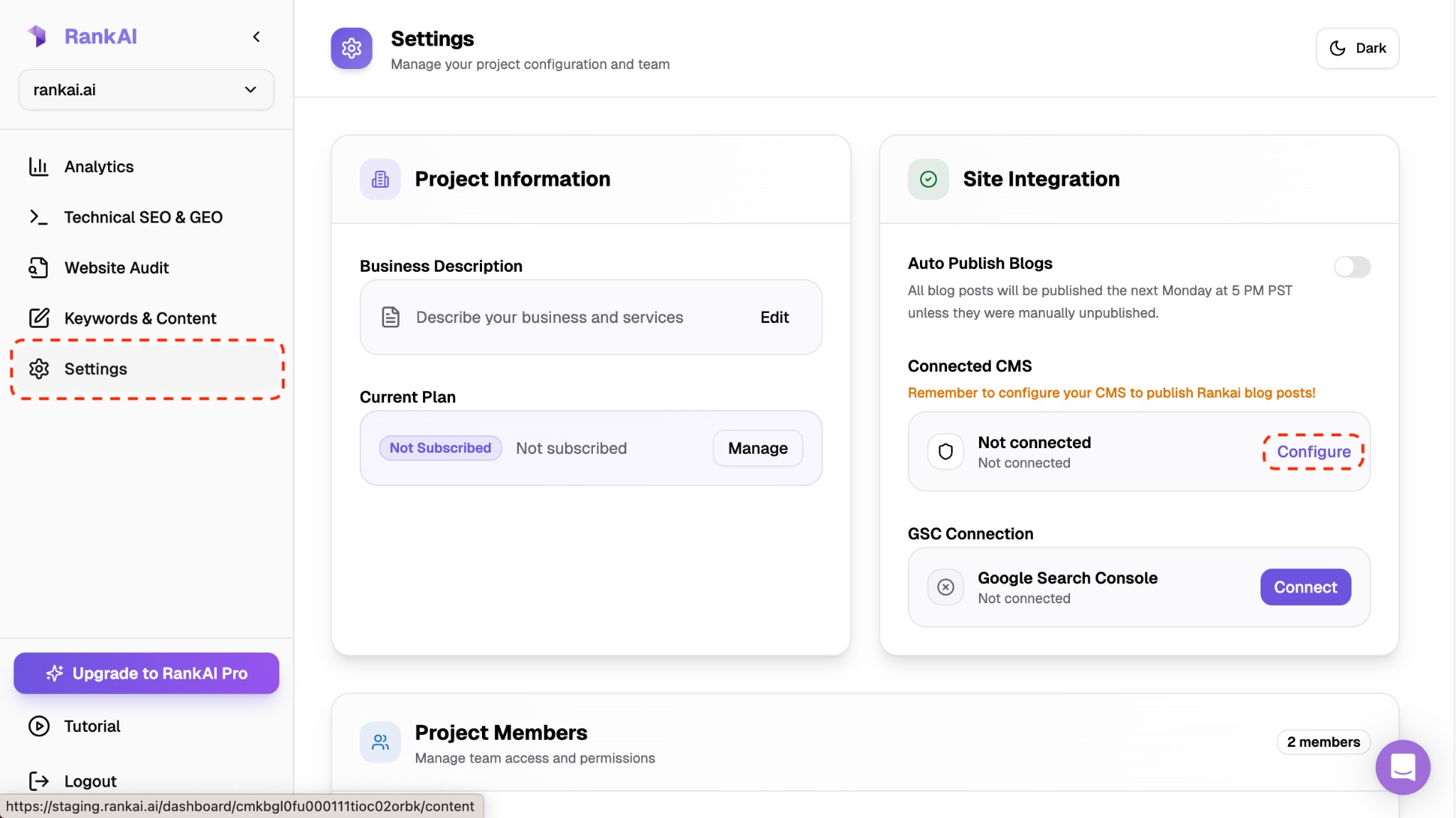
In your RankAI project, open Settings in the sidebar. Under Site Integration, find Connected CMS and click Configure.
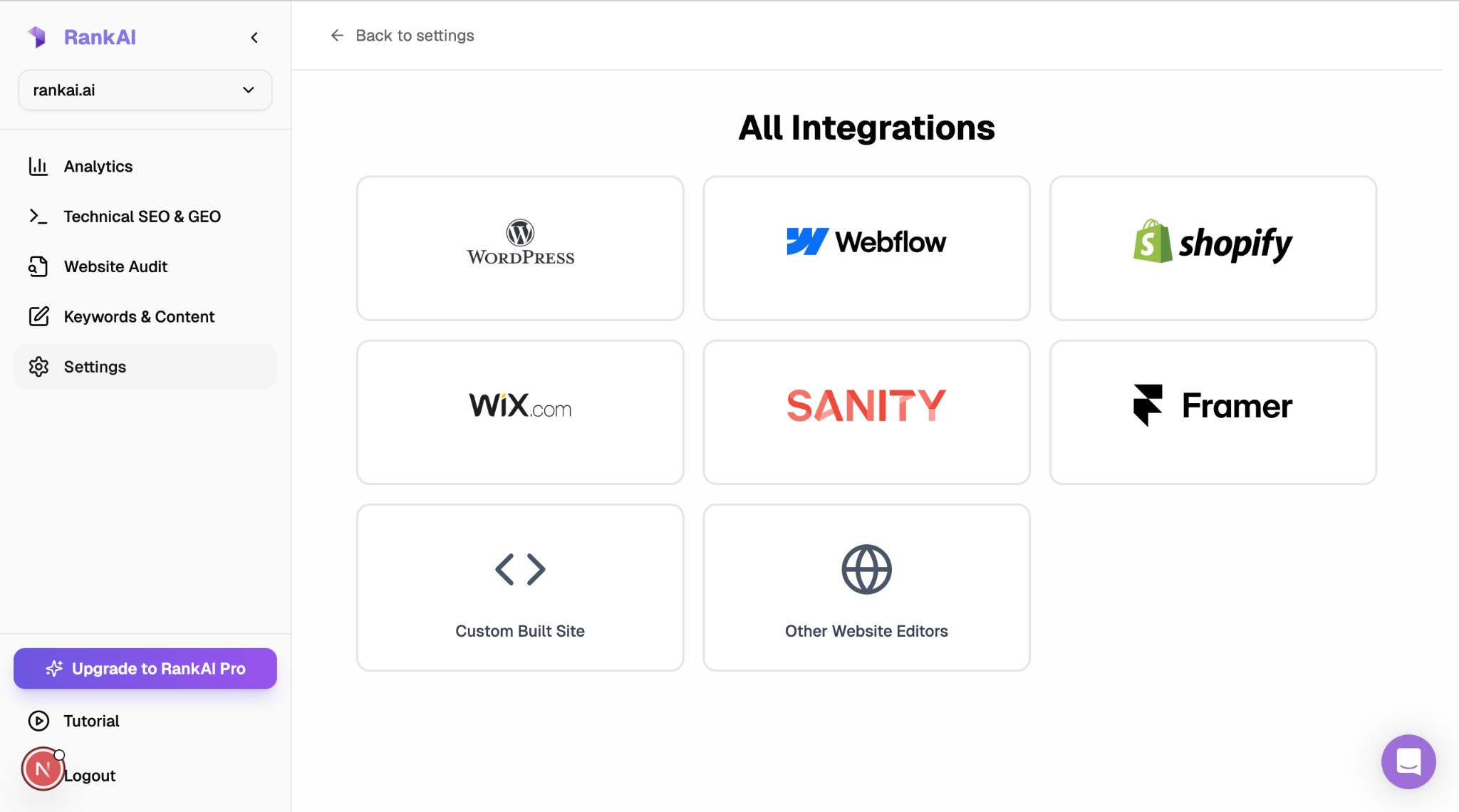
On the next screen, you’ll see All Integrations. Click the Shopify card to continue.
Step 1: Get Shopify Store Name
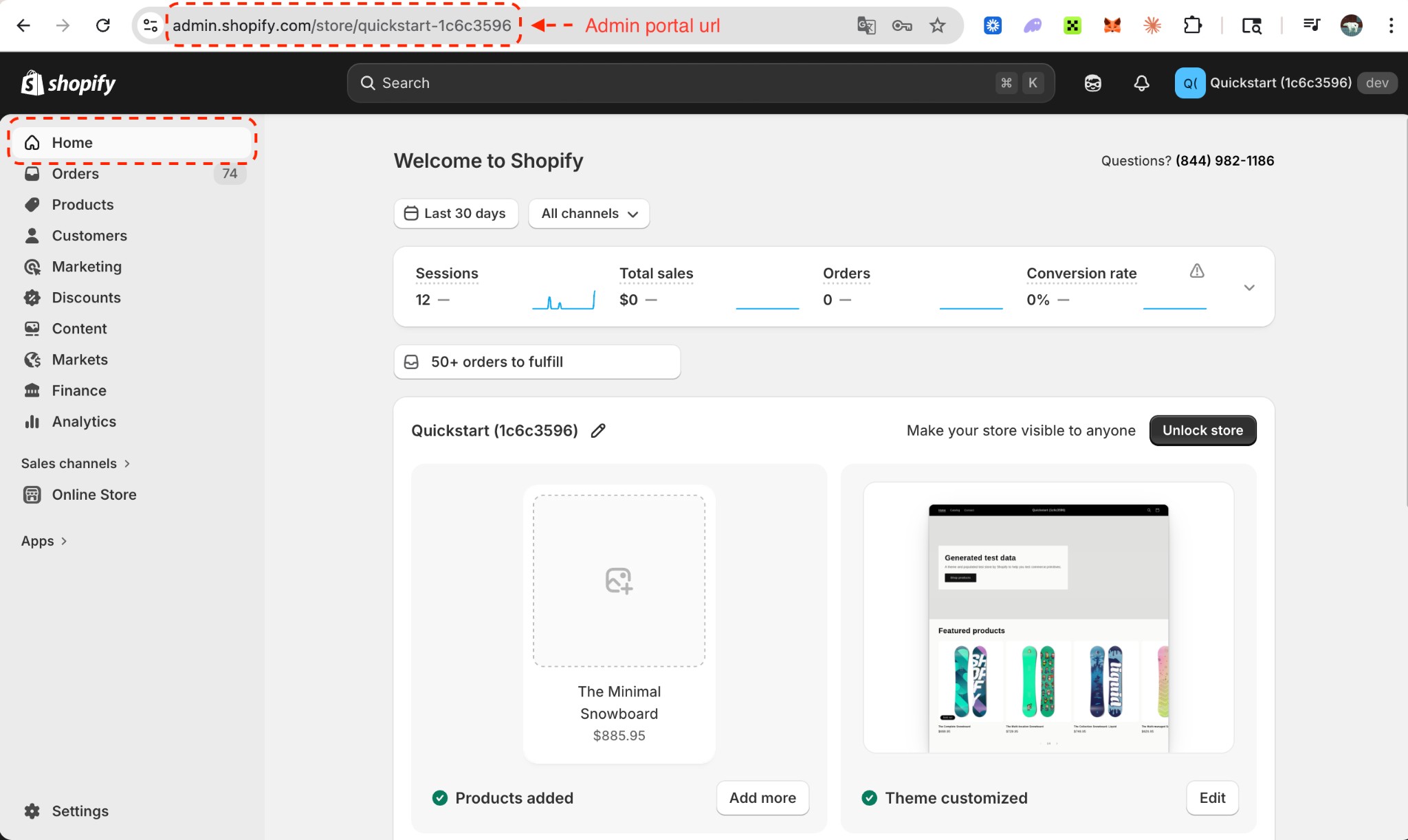
Go to your Shopify Admin portal and sign in. Copy the Shopify Store Name from your browser’s address bar (e.g. your-store-name.myshopify.com) or admin.shopify.com/store/your-store-name. You’ll paste this into RankAI in Step 3.
Step 2: Create Client ID and Secret
RankAI connects to Shopify using an Client ID and Secret. You’ll create a custom app in Shopify Dev Dashboard, configure the required scopes, install it, and then copy the ID and Secret.
2.1 Go to Dev Dashboard and sign in with your Shopify Partner account
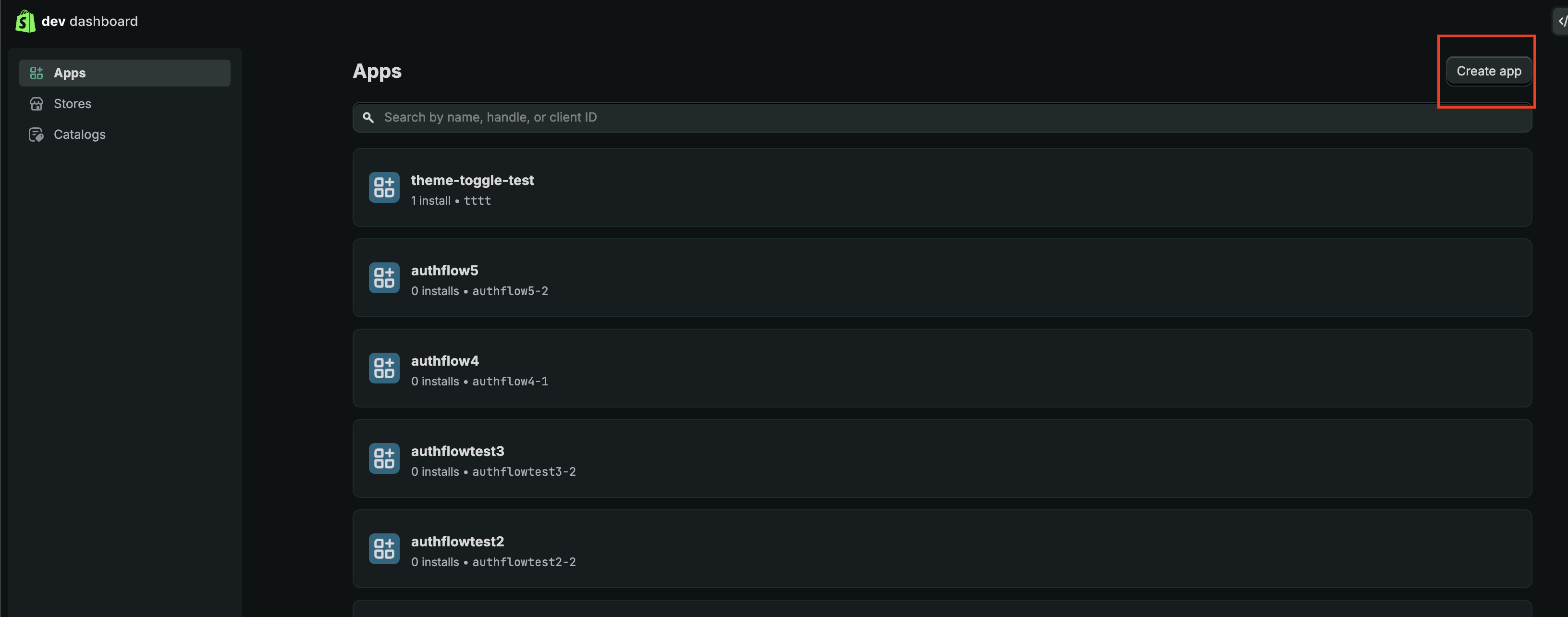
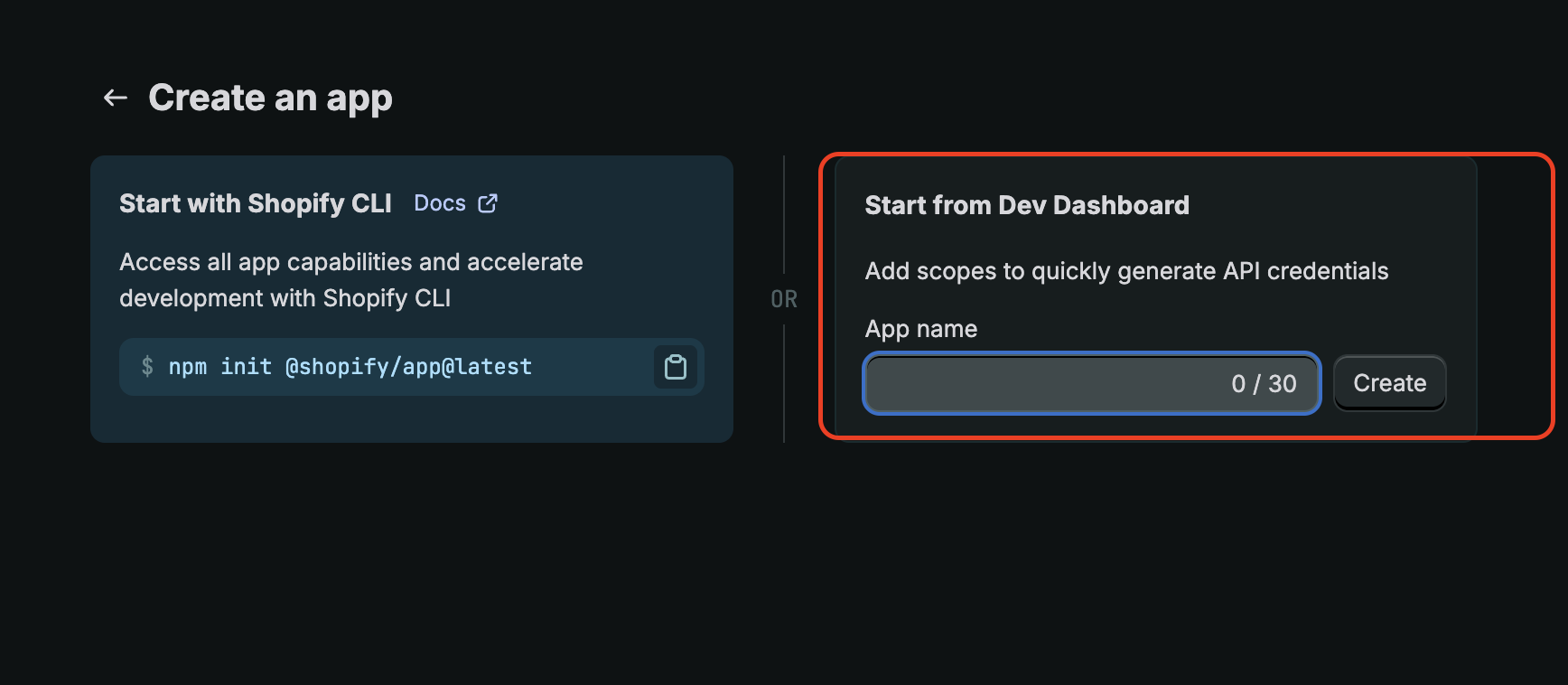
If you don't have a Partner account, create one at the Dev Dashboard (it's free). In your Shopify Dev Dashboard, click on the Apps section from the sidebar and then click Create app button.
2.2 Create an app
On the App page, enter the app name RankAI SEO (or any name you prefer). Click Create.
2.3 Configure Scopes and Release
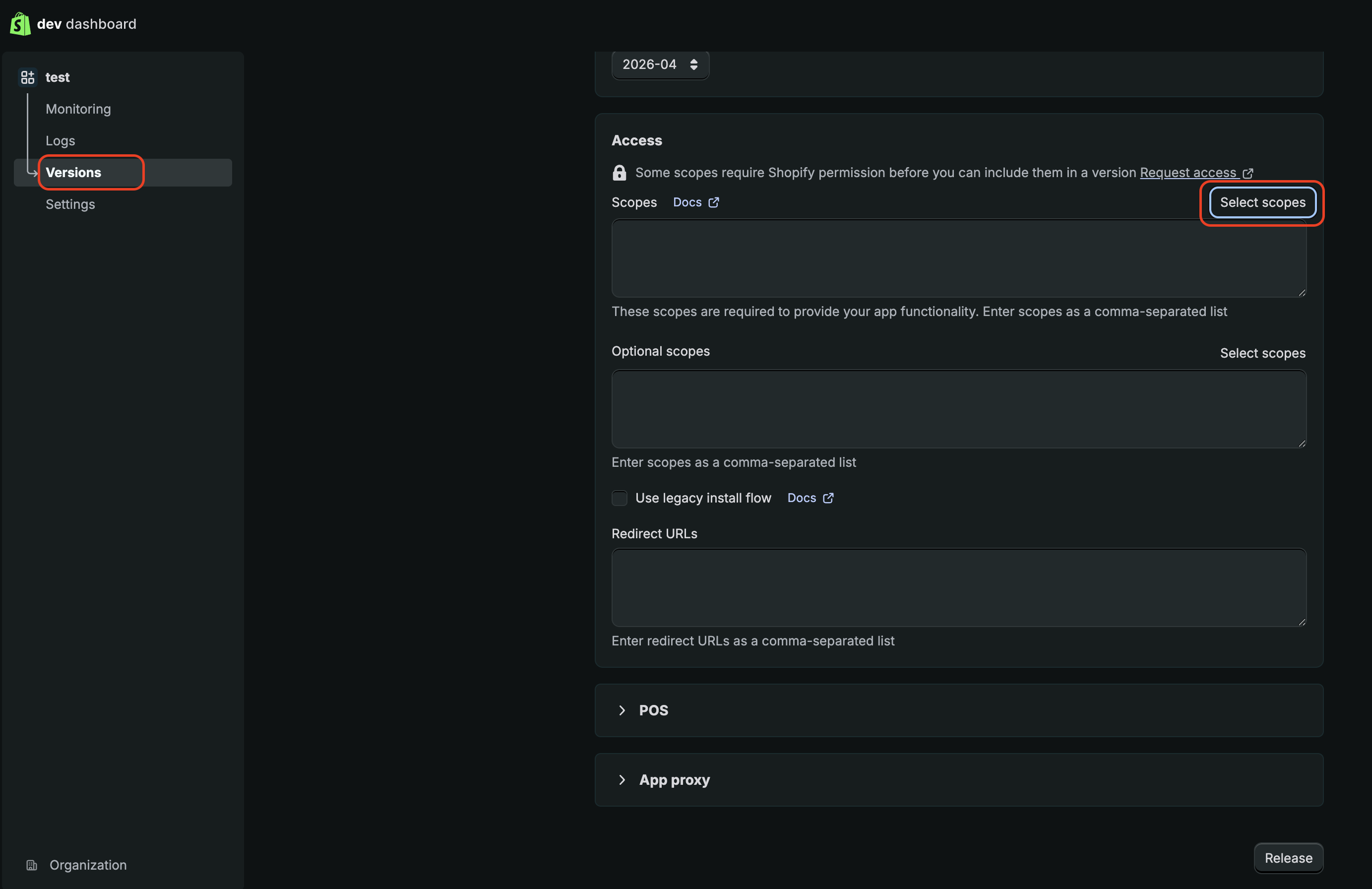
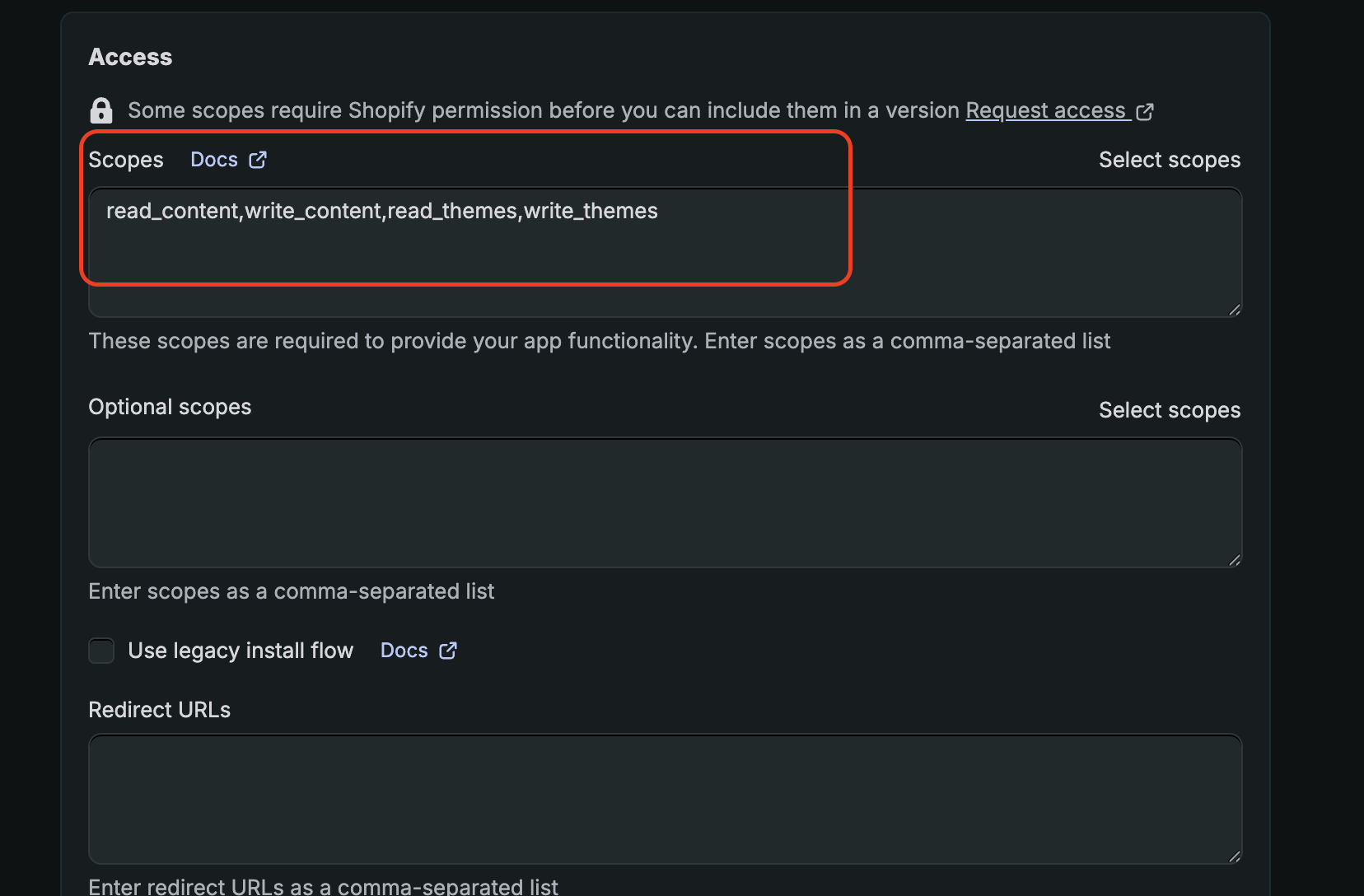
You'll be prompted to create a version. Scroll down to the Access section and click Select Scopes button. Add the following scopes:
- Store content:
read_content,write_content - Themes:
read_themes,write_themes
Click Release button to create the version and optionally give the version a name.
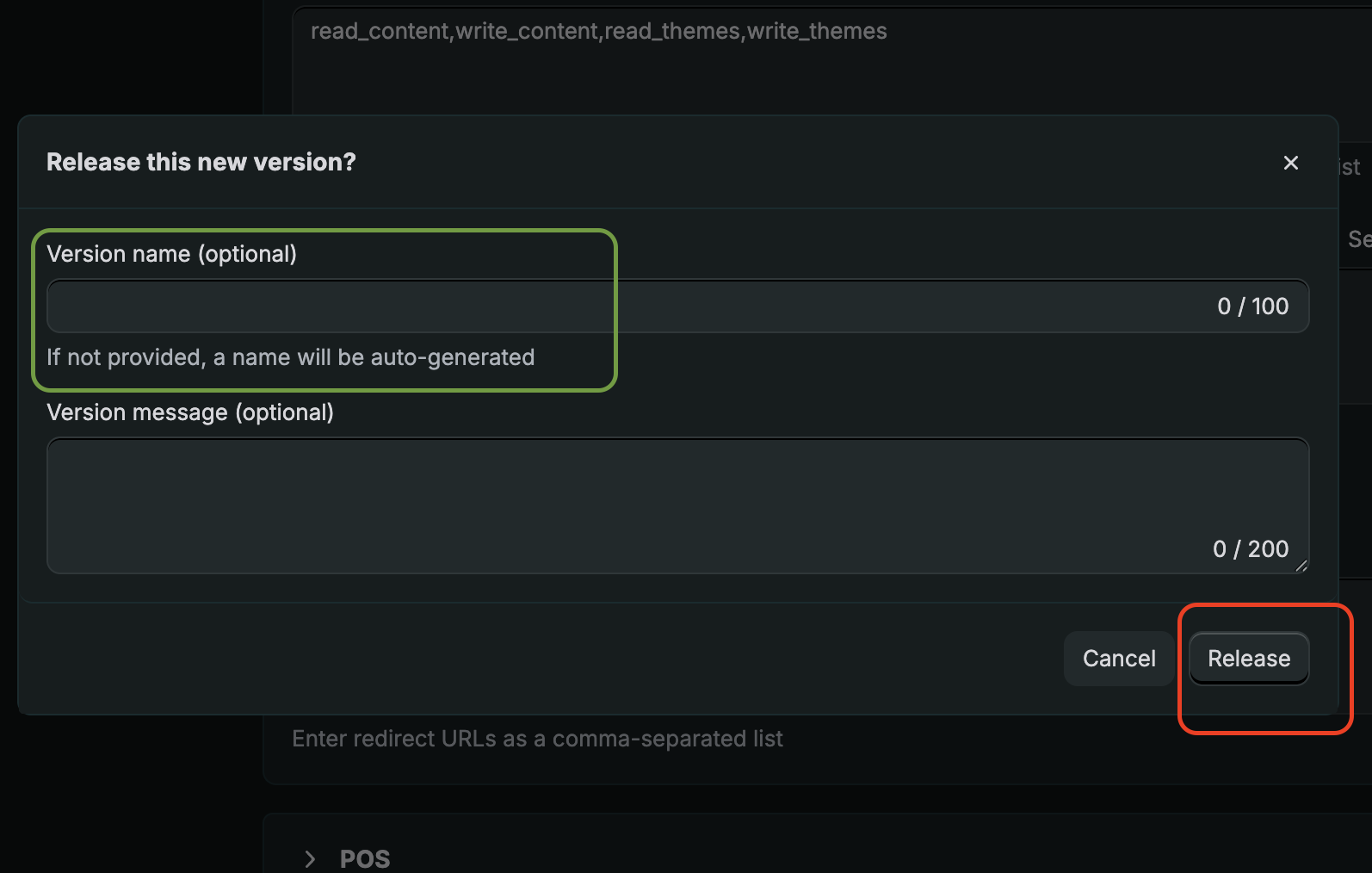
Click Release button again to release the version.
2.5 Install the app in your store
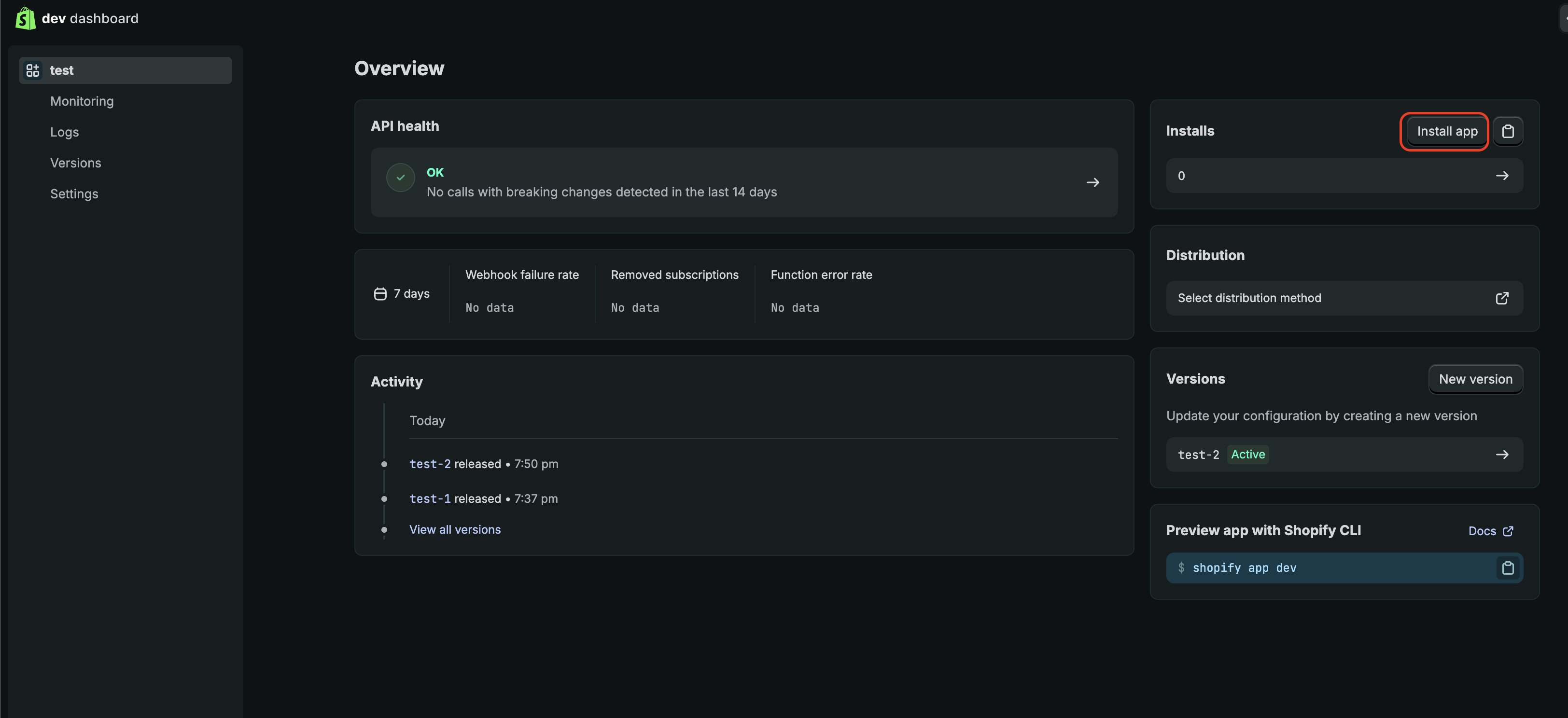
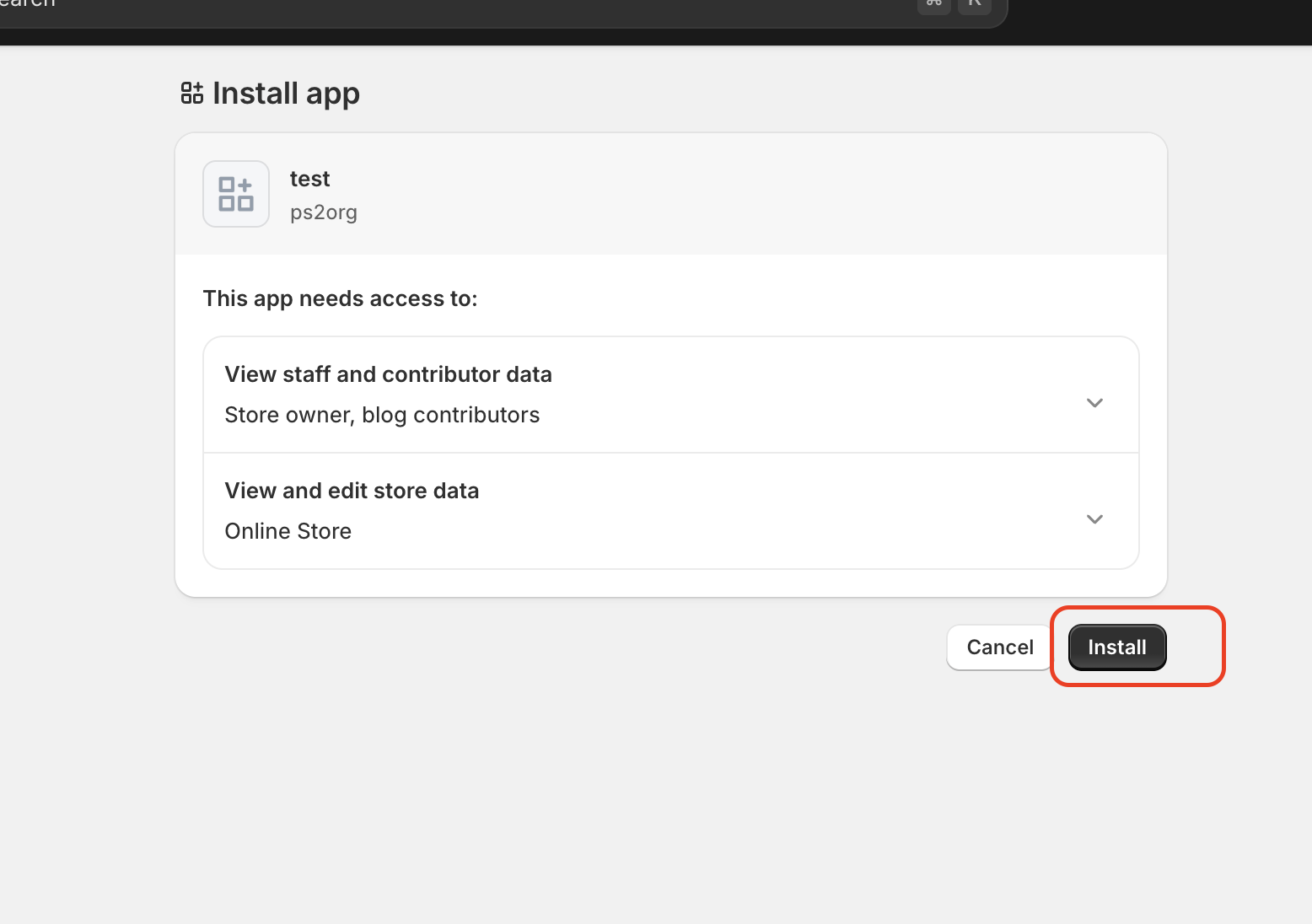
Go to Home tab under your app in the left sidebar and click Install app and click Install again on the next page. Make sure you select the current store to install the app.
2.6 Copy the Client ID and Secret
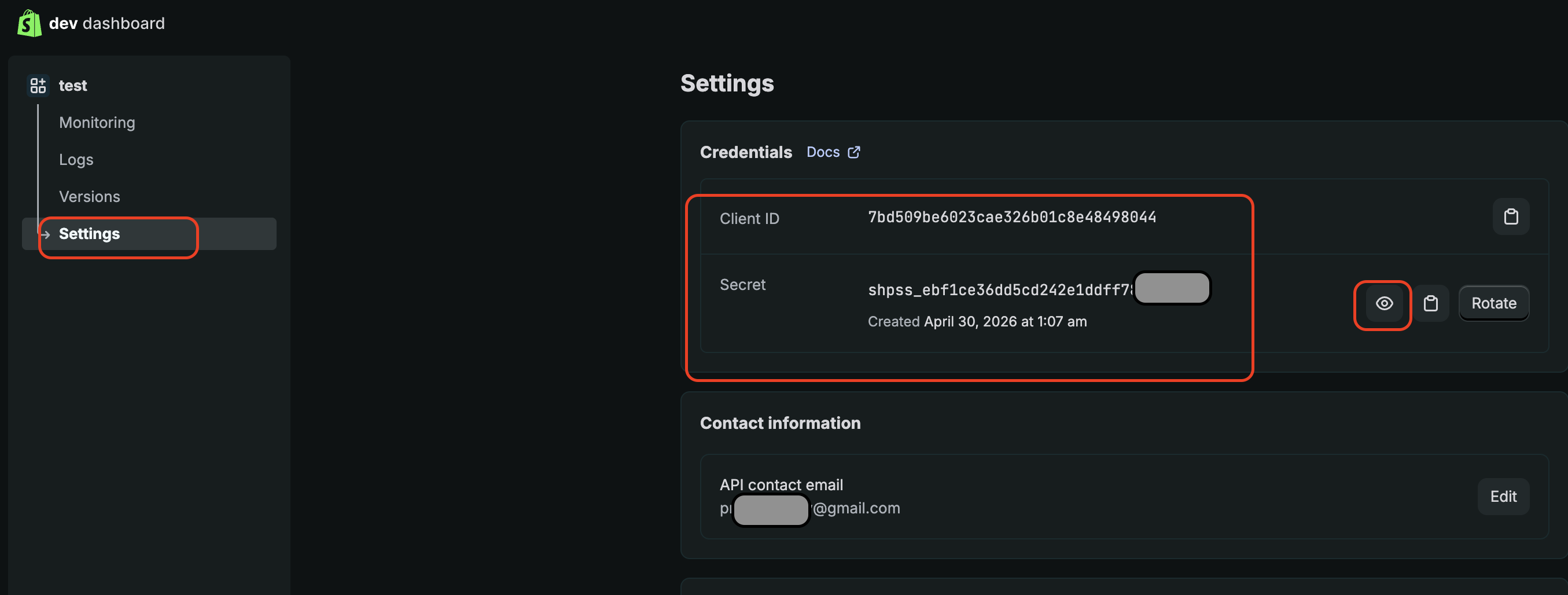
Once installed, go back to dev dashboard and click on your app. Go to Settings tab under your app in the left sidebar
Important
Keep your Client ID and Secret safe.
Step 3: Connect credentials
Back in your RankAI project, open the Shopify integration screen. Enter your Shopify Store Name (from Step 1) and your Client ID and Secret (from Step 2.6), then click Connect.
Connect credentials
Enter your Shopify Store Name and Client ID and Secret.
Shopify Store Name: Paste the Shopify Store Name you copied from your browser in Step 1 (e.g. admin.shopify.com/store/your-store-name).
Client ID: Paste the Client ID you copied in Step 2.6.
Client Secret: Paste the Client Secret you copied in Step 2.6.
Click Connect. RankAI will verify the credentials and connect your store. After connecting, you’ll see the Select Shopify Blog screen—complete Step 4 below to finish setup.
Step 4: Select Shopify blog and save
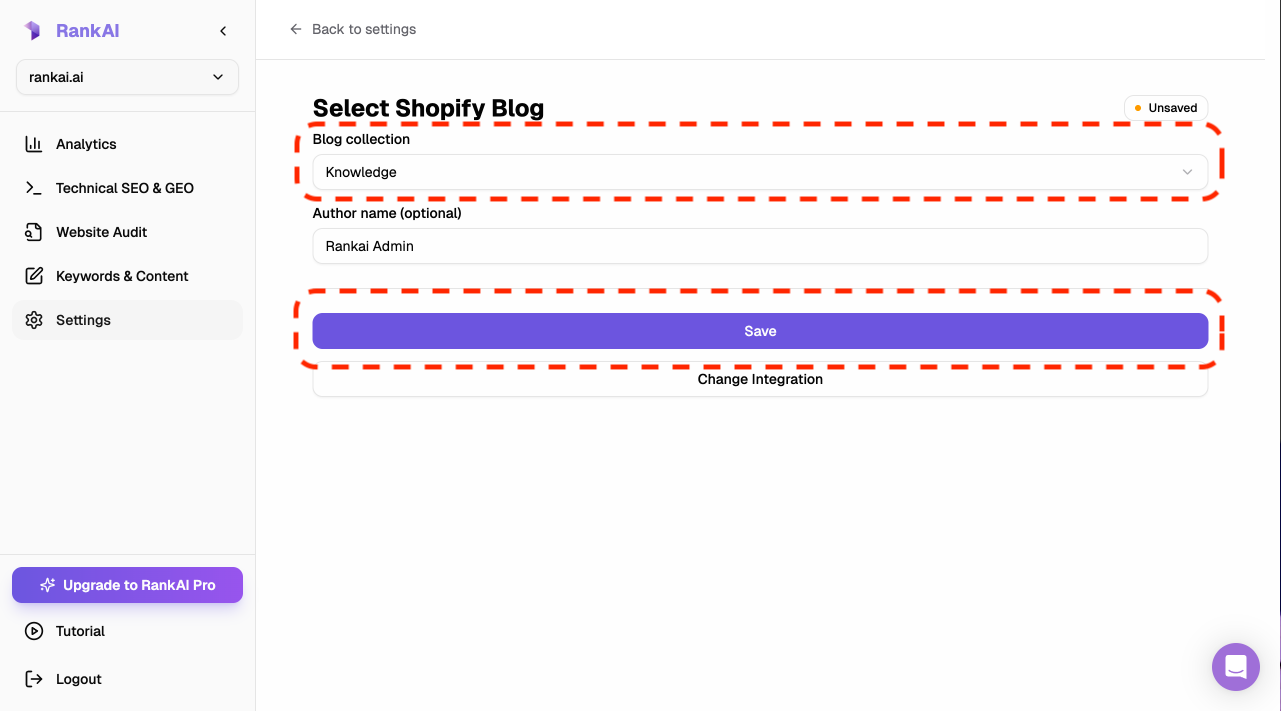
On the Select Shopify Blog screen, choose which blog collection RankAI will publish to and the author name that will appear on your posts. Then save and confirm the status.
4.1 Choose blog collection and author name
Use the Blog collection dropdown to select the Shopify blog where you want RankAI to publish posts (e.g. “Knowledge”, “News”, or a custom blog). In Author name (optional), enter the name that should appear as the author on published posts (e.g. “Rankai Admin” or your brand name).
4.2 Save and confirm
Click the Save button to store your choices. When saving succeeds, the status in the top right changes from Unsaved to Saved (with a green indicator). Only when you see Saved have you completed all steps and finished the Shopify integration setup.
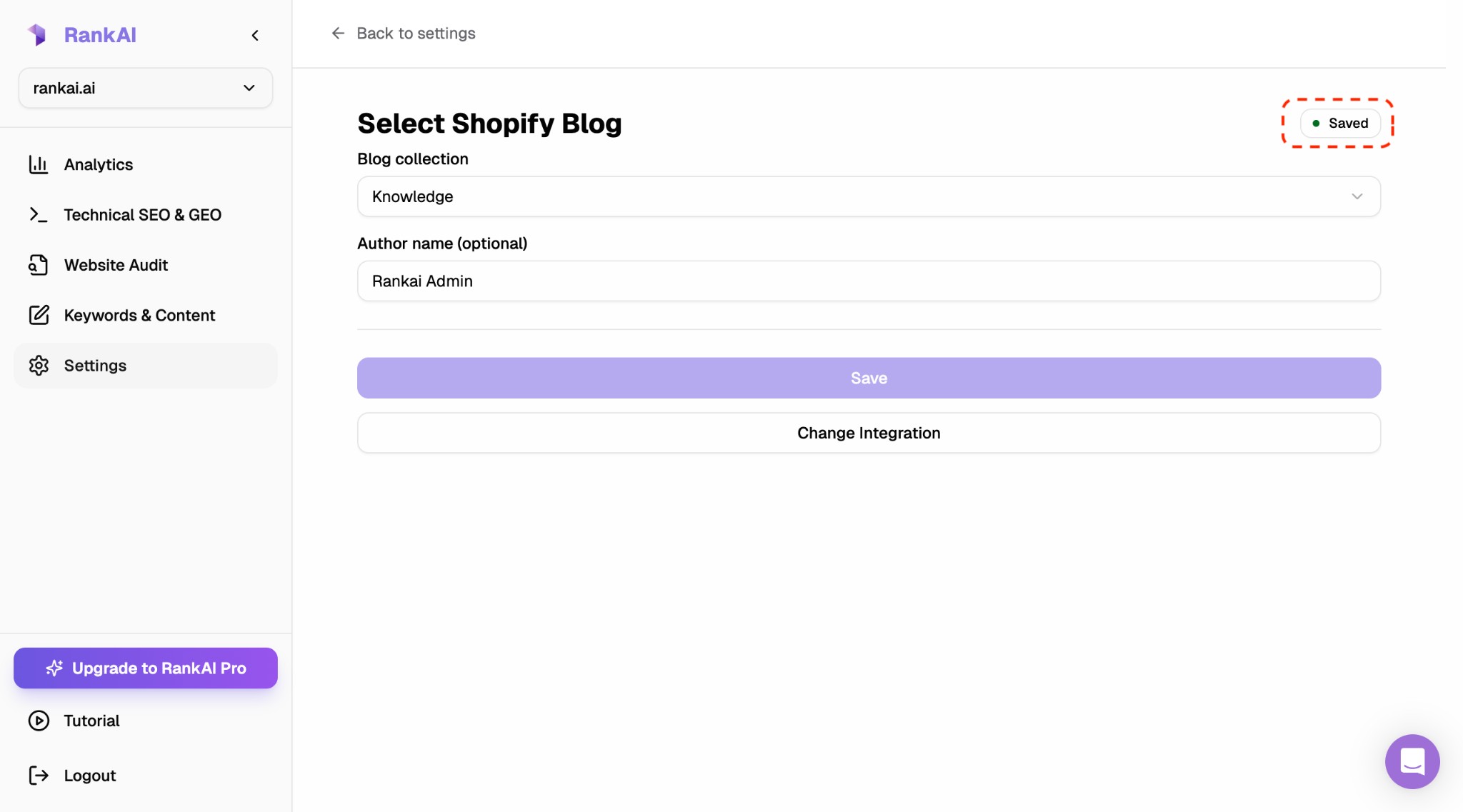
You can change the blog or author later from the same screen, or use Change Integration to switch to a different CMS. Once you see Saved, your Shopify integration is ready and RankAI can publish to your selected blog.
FAQ
What if the connection fails?
Double-check that (1) your Admin Portal URL is the full URL from your browser when logged into Shopify Admin, (2) you’re using the Admin API access token (not a different key), and (3) the app has the required scopes (read_content, write_content, read_themes, write_themes) and is installed.
I lost my Admin API access token. What do I do?
Shopify only shows the token once. Uninstall the app from your store, then create a new app (or create another app), configure the same scopes, install it, and reveal the new token. Paste the new token into RankAI.
Where can I get more support?
Contact your RankAI account team or check the help section in your dashboard.