This guide shows you how to add RankAI's technical SEO script to the frontend of your Sanity-powered site. Sanity is a headless CMS: your content lives in Sanity, but the website visitors see is built with a custom frontend (for example Next.js, React, or plain HTML). You add the script in that frontend so it loads on every page.
Where to get your code
In your RankAI project, go to Technical SEO and look for the Apply Changes button at the top right and Click it. Select Sanity as the provider. snippet of code that looks like the one below. Copy the whole thing. Your version will have your own project ID in it.
<script src="https://rankai.ai/apply.js" data-rankai-id="YOUR_PROJECT_ID" crossorigin="anonymous" defer></script>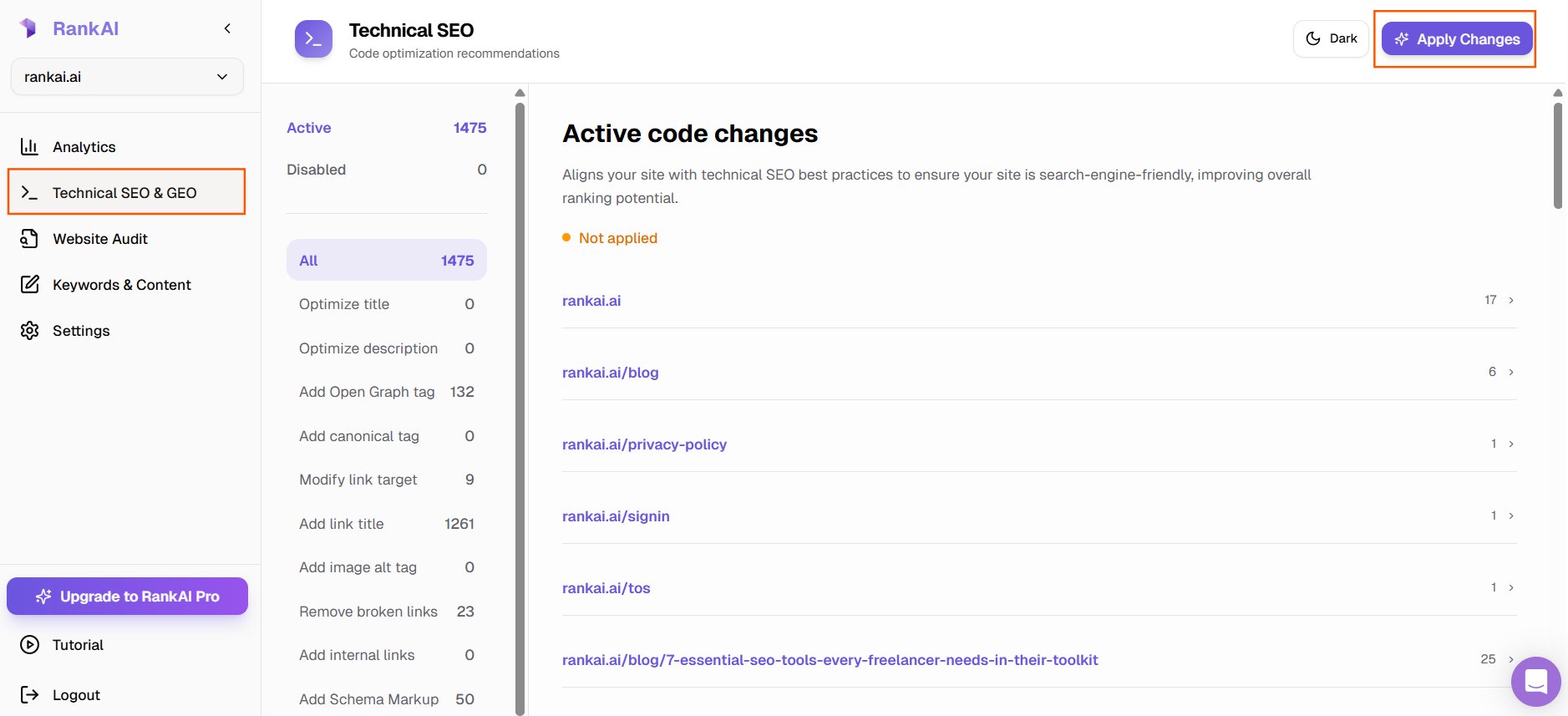
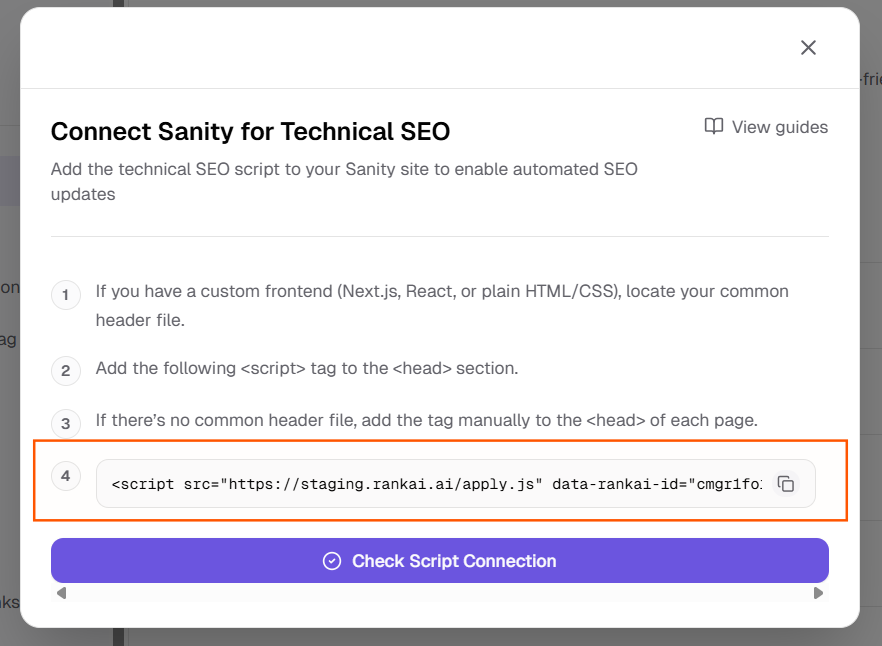
Keep that code handy. In the next steps we'll add it to the <head> section of your frontend so it loads on every page.
Step 1: Locate your common header or layout file
Your frontend (Next.js, React, or plain HTML) has a place where the shared top of every page is defined. That's where the <head> section usually lives. You need to add the RankAI script inside that <head> so it loads on all pages.
- Next.js (App Router): Open
app/layout.tsx(orapp/layout.js). The root layout wraps every page and often includes the <head> or metadata. - Next.js (Pages Router): Open
pages/_document.tsx(or_document.js). That file controls the HTML shell, including <head>. - React (Create React App or similar): Open
public/index.html. The <head> is in that file. - Plain HTML/CSS: If you have one main template or layout file that every page uses, open that. If each page is a separate HTML file, you'll add the script to each page's <head> (see Step 3).
Step 2: Add the script to the <head> section
In the file you found, locate the <head> section. Add the RankAI script inside <head>, before the closing </head>. Paste the full line you copied from RankAI. Don't change or remove any part of it.
Next.js App Router: You can use the <Script> component from next/script in your root layout with strategy="beforeInteractive" or add the script tag inside a <head> in that layout.
Next.js Pages Router (_document): Inside the <Head> component, add the script tag (or use next/script). Same idea: the script must be in the head and load on every page.
Plain HTML: Paste the script on its own line inside <head>, then save the file.
Step 3: If there's no common header file
Some projects don't have a single layout or header file. For example, each page might be a separate HTML file with its own <head>. In that case, add the RankAI script manually to the <head> of each page that you want RankAI to apply to. Paste the same script line in every file, inside <head> and before </head>.
If you use a static site generator or a build step that outputs HTML, add the script in the template or layout that generates the <head> for each page so you don't have to edit every file by hand.
Step 4: Save and deploy
Save your file (or files). If you use a dev server, restart it if needed. Then build and deploy your site as you normally do. The RankAI script will load on every page that includes it in the <head>. RankAI will use it to apply the technical SEO settings you've chosen in your project.
Step 5: Verify the script is installed correctly
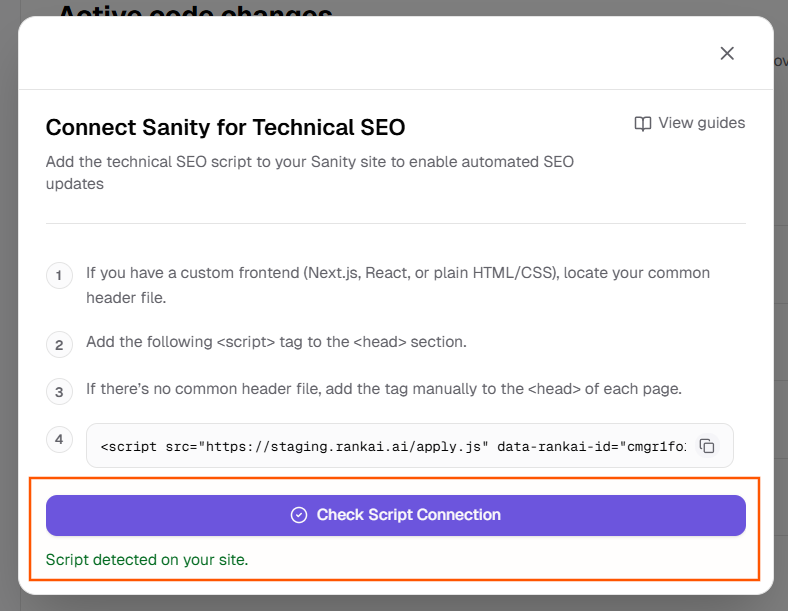
Now go to RankAI tab again and click Check Script Connection. If you see a text in green saying Script detected on your site, the script is connected correctly.
Quick checklist
- Found your common header/layout file (e.g. layout.tsx, _document.tsx, or index.html)
- Added the full script inside the <head> section
- If no common file, added the script to the <head> of each page
- Saved and deployed your frontend
- Checked script connection in RankAI (Check Script Connection)
FAQ
Where exactly do I put the script in Next.js App Router?
In app/layout.tsx, you can add the script using Next.js's <Script> component from next/script with src and data-rankai-id set, and strategy="beforeInteractive". Or inject the script tag into the layout's head. The important part is that it runs on every page.
Does this change anything in my Sanity Studio?
No. You only add the script to your frontend (the site visitors see). Sanity Studio is where you edit content. The script runs on the published site, not in the studio.
How do I know if it's working?
After deploying, open your live site in a new tab. Use your browser's "View page source" option (usually right-click then View Page Source) and search for "rankai" or "apply.js". If you see the script in the source code, it's loaded correctly.
Where can I get more support?
Contact your RankAI account team or check the help section in your dashboard.