
To optimize your Shopify store, focus on key areas like improving site speed, enriching your product and collection pages with the right keywords, and ensuring your store has a clean, mobile-friendly design. These actions make your store more visible in search results and create a better shopping experience, which is essential for driving organic traffic. Since organic search accounts for nearly half of all website traffic, a smart SEO strategy is critical for long-term growth. This guide breaks down exactly how to optimize your Shopify store, focusing on the foundational steps that will make a real difference in 2026.
What is Shopify SEO? (and what ‘optimization’ really means)
Shopify SEO is the process of making your online store more visible in search engine results on platforms like Google. When potential customers search for products you sell, you want your store to show up on the first page. “Optimization” simply means fine-tuning your website’s setup and content so that search engines see it as a high-quality, relevant result for those searches.
This involves three main areas:
- On-Page SEO: Optimizing elements on your actual store pages, like product titles, descriptions, images, and blog posts. This includes using the right keywords so Google understands what your page is about.
- Technical SEO: Improving your site’s backend structure to help search engines find and understand your content. This covers site speed, mobile-friendliness, and clean URLs. Shopify handles many of these technical aspects automatically, but there’s still room for improvement.
- Off-Page SEO: Building your store’s authority and credibility through actions taken outside of your website. The most common example is getting links to your store from other reputable sites.
A good Shopify SEO strategy combines all three to create a powerful, sustainable source of traffic and sales that doesn’t rely on paid ads.
Before you begin: Shopify SEO essentials for 2026
Before diving into specific techniques, it’s crucial to have the right foundation. Without these tools and a clear strategy, your optimization efforts will be like flying blind.
First, set up Google Search Console and Google Analytics. Search Console is a free tool from Google that helps you monitor your site’s performance in search results, submit your site map so Google can find all your pages, and identify technical errors. Analytics shows you how visitors behave once they land on your site, providing valuable insights into which pages are performing well.
Next, conduct keyword research to understand the exact phrases your customers are searching for. Tools like Ahrefs or SEMrush can help you find relevant terms with good search volume. Focus on “long-tail keywords” (phrases of three or more words), as they often show a stronger intent to buy and are less competitive. For example, instead of just “shoes,” you might target “women’s waterproof hiking shoes.”
Finally, plan your site structure. A logical structure, typically Homepage > Collection Pages > Product Pages, makes it easy for both shoppers and search engines to navigate your store. A clear path helps prevent customers from getting lost and ensures search engines can discover all of your products.
Getting these essentials right from the start will make every other optimization task more effective. If you’re feeling overwhelmed, services like Rankai can handle the entire process for you, from keyword research to technical fixes and content creation.
How to Optimize Your Shopify Store: Top 15 Tips
Moving beyond the initial setup, achieving peak performance requires a comprehensive strategy. This breakdown of fifteen essential tips combines technical health, SEO best practices, and user experience to provide a clear roadmap for growing your business.
1. Improve site speed and Core Web Vitals
A faster store leads to better sales. When pages load quickly, customers are less likely to leave and more likely to make a purchase. Google also rewards fast websites with better rankings. Improving your store’s speed is one of the most impactful things you can do for both SEO and conversions.
- Check your store’s speed in your Shopify Admin under Analytics > Reports > Web Performance. This report shows your speed score and identifies which pages are slowest.
- Uninstall any apps you aren’t using. Apps add extra code to your store, and removing unnecessary ones is a quick way to clean up and speed up your site.
- Use an image optimization app from the Shopify App Store to compress your images without sacrificing quality. Large image files are a primary cause of slow load times.
- Choose a “fast” or “performance-optimized” theme from the Shopify Theme Store. Modern themes are built with speed in mind.
- Use Google’s PageSpeed Insights tool to get a detailed report on your site’s speed and suggestions for improvement.
2. Optimize product pages for SEO
Your product pages are where sales happen. Optimizing them helps you show up in more searches and encourages shoppers to click “add to cart.” Well-optimized pages can also appear in Google’s special shopping results, complete with price, availability, and star ratings.
- In the product editor, scroll down to the Search engine listing section and write a unique, compelling title and description for every product. Aim for titles under 60 characters and descriptions under 160.
- Write detailed, benefit-focused product descriptions. Don’t just copy and paste from a supplier. Explain how the product helps your customer and include relevant keywords naturally.
- Use the Google & YouTube app in Shopify to connect to Google Merchant Center. This makes your products eligible to appear in free shopping listings.
- Encourage customer reviews. Reviews add fresh, trusted content to your pages and can help you earn star ratings in search results.
- Use high-quality photos with descriptive alt text for every image. (More on this in tip #15).
3. Implement and optimize structured data (schema)
Structured data, or “schema,” is a type of code that helps search engines understand the information on your pages. It’s what powers “rich snippets” in search results—like star ratings, prices, and stock availability shown directly under your link. These details make your listings stand out and can significantly increase clicks.
- Choose a modern theme from the Shopify Theme Store, as most already include the basic product schema you need.
- Install a reputable SEO app from the Shopify App Store to add more advanced schema, such as for FAQs or reviews, without needing to touch any code.
- After installing an app or changing your theme, use Google’s Rich Results Test tool to check a product page URL and ensure everything is set up correctly.
- Focus on getting real customer reviews, as this data is used to generate the star ratings that build trust with shoppers.
4. Optimize collection (category) pages
Collection pages are your store’s digital aisles. They are crucial for ranking for broader search terms like “living room furniture” or “summer dresses.” A well-optimized collection page helps customers discover products and signals to Google what your store is all about.
- Go to Products > Collections and write a unique, keyword-rich description for each collection. Explain what makes the products in that category special.
- Just like with product pages, edit the Search engine listing to create a unique title and meta description for every collection.
- Use the free Shopify Search & Discovery app to add helpful filters (like size, color, or price) to your collection pages, making it easier for customers to shop.
- In the collection editor, set the default sort order to “Best selling” to show your most popular products first.
5. Use a clear and consistent URL structure
To avoid confusing Google, you want one single, “canonical” URL for each product. Some older themes or apps might create multiple URLs for the same product depending on how a customer finds it (e.g., from the “shirts” collection vs. the “new arrivals” collection). This can split your SEO value and hurt your rankings.
- The good news: Shopify automatically sets a canonical URL for your pages, and most modern themes link to it correctly.
- The main action here is to be consistent. Once a product URL (or “handle”) is set, try not to change it.
- If you absolutely must change a URL, use the built-in URL Redirects tool (Online Store > Navigation > View URL Redirects) to forward the old link to the new one. This preserves your SEO value.
6. Fix duplicate content
Duplicate content happens when the same or very similar text appears on multiple pages of your website. This can confuse search engines and dilute your ranking power. The most common cause for Shopify stores is using the same manufacturer descriptions across many products.
- Write unique product descriptions for every item in your store. This is the single most important step you can take to avoid duplicate content issues.
- Write unique introductory text for each of your collection pages.
- Shopify’s built-in canonical tags help Google understand which page is the “main” version, but unique content is still the best practice.
- If you have pages with very little content that you don’t want Google to index, you can use an SEO app to add a “noindex” tag to them.
7. Enable fast checkout
A long and complicated checkout process is a major reason why shoppers abandon their carts. By enabling accelerated checkout options, you can reduce friction and significantly increase your conversion rate.
- In your Shopify Admin, go to Settings > Payments and activate Shop Pay. This allows returning customers to check out with a single click.
- In the same section, enable digital wallets like Apple Pay and Google Pay. This is especially important for mobile shoppers.
- Go to Settings > Checkout and ensure your layout is as streamlined as possible. Shopify’s one-page checkout is an excellent option.
- In your theme customizer, make sure the “dynamic checkout buttons” are visible on your product pages. This lets customers buy directly without going to the cart first.
8. Set up Google Search Console (GSC)
Google Search Console is a free and essential tool that acts as a direct line of communication between your store and Google. It helps you find errors, see which keywords are bringing you traffic, and ensure Google can properly crawl and index your site.
- Go to the Google Search Console website and add your domain as a new “property.”
- Google will give you a code to verify that you own the domain. The easiest way is to add a TXT record in your domain settings (Settings > Domains > DNS Settings in Shopify).
- Make sure your store’s password page is disabled (Online Store > Preferences) so Google can access it.
- In GSC, go to Sitemaps, enter
sitemap.xml, and click Submit. Shopify automatically creates this file for you, which is a map of all your pages.
9. Set up Google Analytics 4 (GA4) and connect to Shopify
While GSC tells you what happens before a user clicks, Google Analytics tells you what happens after they land on your store. It tracks traffic, user behavior, and sales, allowing you to see which of your SEO efforts are paying off.
- If you don’t have one, create a Google Analytics 4 property for your website.
- In your Shopify Admin, install the free Google & YouTube app from the app store.
- Open the app and follow the steps to connect your Google account and select your GA4 property.
- This app automatically sets up e-commerce tracking, so you can see which channels are driving the most revenue without needing to add any code to your theme.
10. Create an internal linking strategy
Internal links are links from one page on your site to another. A smart internal linking strategy helps both customers and search engines discover your most important pages. It also spreads “link authority” throughout your site, which can boost the rankings of all your pages.
- When writing blog posts, link to relevant products or collections using descriptive anchor text (e.g., link the phrase “our new linen shirts” to the linen shirts collection).
- Use the description field on your collection pages to link to a few of your top-selling products within that category.
- Enable “breadcrumbs” in your theme settings. These are the small navigational links (e.g., Home > Shirts > Blue T-Shirt) that show users where they are and provide internal links.
- Make sure your theme’s “related products” feature is enabled on product pages to encourage customers to browse more items.
11. Use an SEO-friendly site structure
A simple, logical site structure makes it easy for shoppers to find what they’re looking for and helps Google understand your catalog. The goal is to ensure any product can be reached in just a few clicks from the homepage.
- Plan your main menu (Online Store > Navigation) to be clear and intuitive. Stick to 5-7 main categories if possible.
- Use Collections to group your products logically (e.g., by product type, brand, or for a specific use).
- Use a “shallow” structure: ideally, Homepage > Collection Page > Product Page. Avoid burying products in too many sub-categories.
- Use the Shopify Search & Discovery app to add filters, which allows customers to narrow down large collections without needing complicated sub-menus.
12. Ensure the store is mobile-friendly (mobile-first)
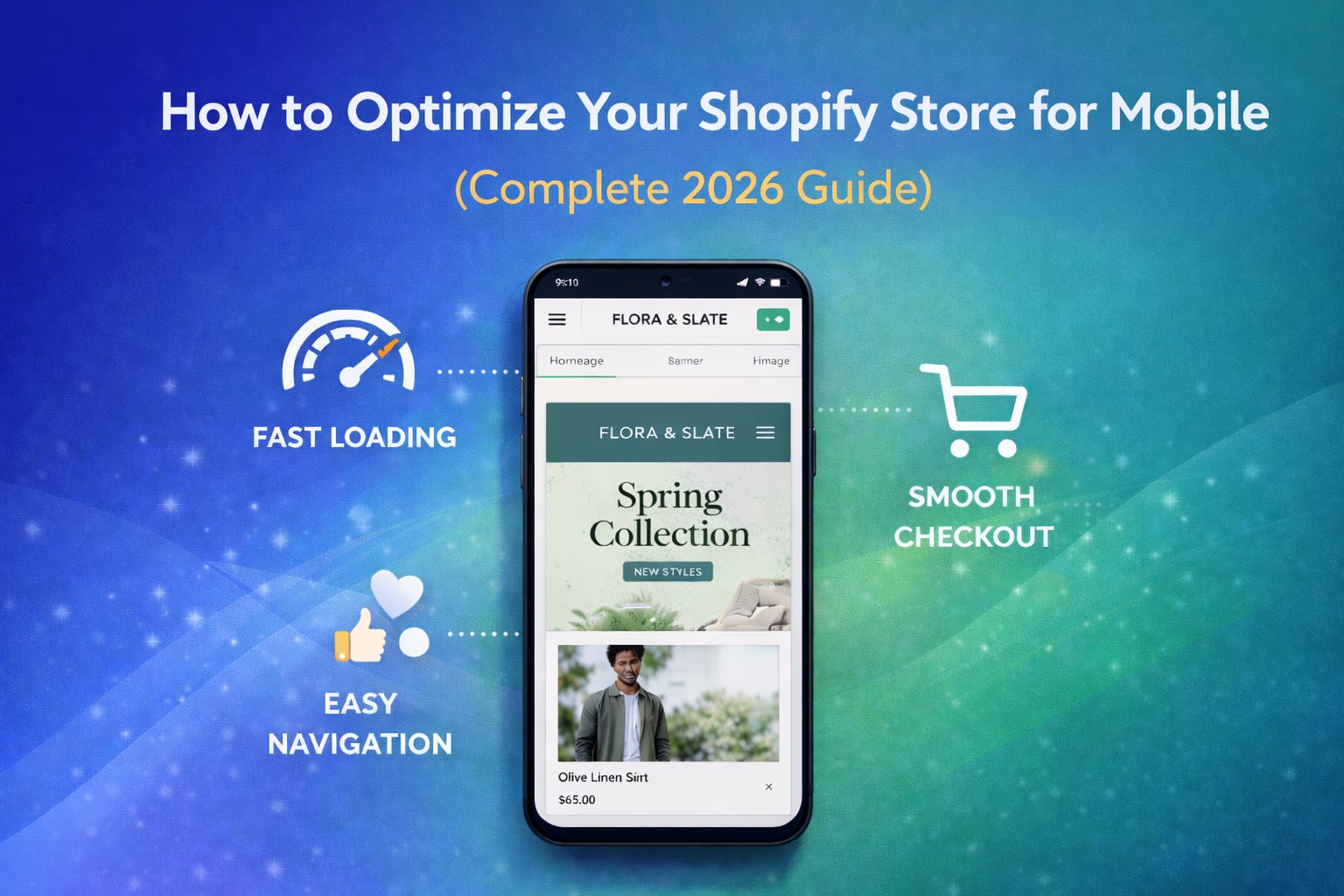
More people shop on their phones than on desktops. Google also prioritizes the mobile version of your site for ranking purposes. A fast, easy-to-use mobile experience is non-negotiable for a successful Shopify store.
- Use a modern, responsive theme from the Shopify Theme Store. All of them are designed to work beautifully on mobile devices.
- Regularly check your store on your own smartphone. Is it easy to read the text? Are the buttons large enough to tap? Is the menu simple to navigate?
- Keep your mobile design clean and uncluttered. Avoid large pop-ups that are difficult to close on a small screen.
- Use Google’s free Mobile-Friendly Test tool to check your pages and get suggestions for improvement.
13. Optimize your theme and apps
Your theme and the apps you install are the building blocks of your store. Choosing lightweight options and keeping them tidy prevents your site from getting slow and bloated.
- Regularly review your installed apps under Settings > Apps and sales channels. If you’re not using an app, uninstall it.
- When choosing apps, look for ones that are well-reviewed and mention performance or speed in their descriptions.
- Before making major changes, like installing a new theme, make a backup copy.
- Use Shopify’s Web Performance Dashboard to monitor how changes or new apps affect your store’s speed.
14. Choose an SEO-friendly, responsive Shopify theme
Your theme is the foundation of your store’s performance and user experience. A well-coded, modern “Online Store 2.0” theme provides a fast, mobile-friendly base and includes many of the SEO features you need right out of the box.
- When browsing the Shopify Theme Store, filter for themes that are optimized for performance.
- Look for features like “sections everywhere,” which gives you more flexibility in designing pages without needing to add heavy apps.
- Read recent reviews to see what other merchants say about the theme’s speed and the quality of its support.
- Before you publish a new theme, preview it and test its performance with Google’s PageSpeed Insights tool.
15. Optimize images (compression, filenames, alt text)
Images are crucial for e-commerce, but large, unoptimized images are one of the biggest causes of a slow website. Properly optimizing your images improves speed, accessibility, and can even help you rank in Google Image search.
- Use descriptive alt text: For every image you upload, add a short, descriptive “alt text” in the Shopify media editor. This helps visually impaired users and tells Google what the image is about.
- Use smart filenames: Before uploading, name your image files with descriptive, hyphenated keywords (e.g.,
blue-denim-jacket-front.jpginstead ofIMG_1234.jpg). - Compress your images: Use an image optimization app from the Shopify App Store. These apps automatically reduce the file size of your images when you upload them, which dramatically improves page load times.
- Use the right format: Use JPGs for most product photos and PNGs for images that require a transparent background, like logos.
Advanced considerations for 2026 (AI overviews, zero-click, and voice)
The world of search is always changing. As we move through 2026, a few key trends are reshaping how to optimize your Shopify store.
First, Google’s AI Overviews are changing search results. These AI-powered summaries appear at the top of the page, often answering a user’s question directly. To appear in these summaries, focus on creating high-quality blog posts and detailed product descriptions that directly answer common customer questions. Using clear headings and bullet points makes it easier for AI to pull your content.
Second, voice search optimization is becoming more important. Many consumers now use voice assistants like Siri and Alexa for shopping. Voice searches are typically longer and more conversational. Optimize for this by including question-based phrases in your content. For example, instead of targeting “men’s running shoes,” create content that answers “what are the best running shoes for trail running?”
Finally, be aware of zero-click searches. This is when a user gets their answer directly on the results page without clicking a link. You can adapt by optimizing for rich results (like the product schema mentioned earlier) which display price, availability, and reviews directly in the search results, giving your brand visibility even without a click.
Conclusion: Focus on helpful, fast, clearly described experiences, and then keep iterating
Ultimately, optimizing your Shopify store in 2026 comes down to one core principle: create a fantastic experience for your customers. This means having a fast, mobile-friendly site with logically organized products and genuinely helpful content. A website that loads in 1 second can have a conversion rate three times higher than a site that takes 5 seconds to load.
Your product pages should have unique, compelling descriptions and high-quality images. Your blog should answer your customers’ questions, establishing your brand as a trusted authority.
But SEO is not a one-time task. It requires continuous monitoring and improvement. Regularly review your keyword performance in Google Search Console, track your traffic in Google Analytics, and don’t be afraid to update and improve your pages over time. This cycle of publishing, measuring, and optimizing is what separates successful stores from the ones that get lost in the noise.
If managing this ongoing process feels daunting, consider a service that specializes in it. Rankai combines AI efficiency with human expertise to create and continuously optimize over 20 pages of content for you every month, ensuring your Shopify store is always working to attract more organic traffic.
FAQ
How long does it take for Shopify SEO to work?
While you can see minor improvements in a few weeks, significant results from a Shopify SEO strategy typically take 3 to 6 months. SEO is a long-term investment that builds compounding returns over time. Consistent effort in creating quality content and building authority is key.
Is Shopify good for SEO?
Yes, Shopify is a great platform for SEO. It comes with many built-in features like automatically generated sitemaps, SSL certificates, and canonical tags to prevent duplicate content. However, to truly succeed, you still need to actively optimize your content, keywords, and site structure.
What are the most important factors for Shopify SEO?
The most critical factors are high-quality product descriptions and collection pages, a logical site structure, fast page load speed, and a mobile-first design. Google’s mobile-first indexing means the mobile version of your site is the one that matters most for ranking.
Can I do Shopify SEO myself?
Absolutely. With time and a willingness to learn, you can implement many effective SEO strategies on your own. Start by mastering the basics like keyword research, on-page optimization for your product pages, and ensuring your site is technically sound.
How do I optimize my Shopify product pages?
To optimize a product page, start with a unique and descriptive title that includes your main keyword. Write a detailed product description that highlights benefits and answers common questions. Use high-quality images with descriptive alt text, and encourage customer reviews to build trust and add fresh content.
How can I improve my Shopify store’s speed?
Key ways to improve speed include compressing images before uploading, removing any unused apps, and choosing a lightweight, mobile-optimized theme. Too many apps can add unnecessary code that slows your site down.
Why isn’t my Shopify store showing up on Google?
If your store is new, it may simply need more time for Google to crawl and index it. Make sure you have submitted your sitemap via Google Search Console. Other common issues include having duplicate content, a lack of quality backlinks, or targeting keywords that are too competitive.
What is the best way to learn how to optimize my Shopify store?
Start with foundational resources like Google’s own SEO starter guide. Then, explore reputable SEO blogs and tutorials. The most effective way to learn, however, is by doing. Implement the basics, monitor your results using Google Analytics and Search Console, and continually test and refine your approach.