

The launch link that rendered as a gray box
I shared a launch post I had worked hard on, dropped the link into LinkedIn, and watched the preview render as a blank gray box with the wrong title underneath.
It looked broken, so it got ignored. People scrolling past had no reason to stop, because the card gave them nothing to react to. The content behind the link was strong, but the first impression was a placeholder, and the first impression is all most people ever see.
One blank card taught me what no analytics dashboard had. When your link is shared, the Open Graph card is your headline, your image, and your pitch all at once. If it is broken or empty, it does not matter how good the page is, because almost no one clicks through to find out.
Why your social card matters
Open Graph tags control how your link looks when it is shared anywhere, from social feeds to chat apps. That preview, the title, description, and image, is the first thing people judge.
- A missing or broken image makes even great content look careless.
- A weak or wrong title and description on the card gives people no reason to click.
- You only see the real preview after sharing, unless you test it first.
Testing the card before you publish turns a gamble into something you can see and fix.
See your card before you share it with the Open Graph / Social Card Preview
Our team at RankAI built an Open Graph / Social Card Preview, free to run.
You enter your title, description, and image details and it simulates how your social card will look before you publish.
How to preview your social card for free, step by step
Step 1. Open the free tool
Go to rankai.ai/tools/open-graph-social-card-preview. It is free and you can start in seconds.
Step 2. Enter your card details and preview
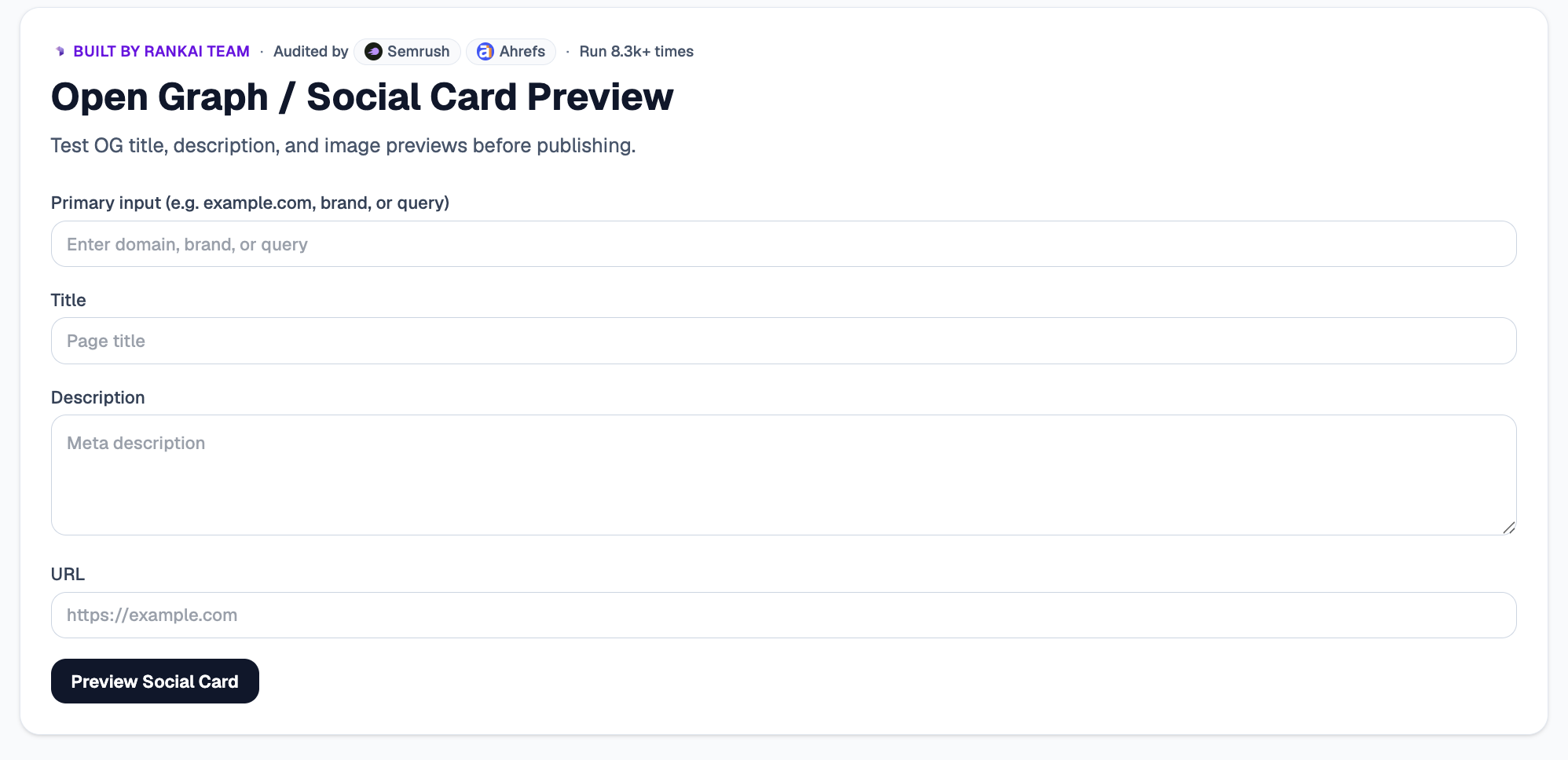
Add your Primary input (domain, brand, or query), then fill in your Title, Description, and URL. Click Preview Social Card to see how it will appear when shared.
Step 3. Read your Quick verdict and Top 3 insights
In a couple of seconds you see a simulated card plus the Top 3 insights: a missing or wrong image, a title that gets cut off, or a description that fails to earn the click.
Step 4. Expand "Raw details" for the full breakdown
Open the Raw details to see exactly which Open Graph tags are present, missing, or too long, so you know what to fix.
Step 5. Want to go deeper? Get the Full AI Visibility Audit
For a much more detailed look at your whole site, not just this one check, click Get Full AI Visibility Audit (or the free trial link on the tool).
Step 6. Fill in your details to unlock the full audit (still free)
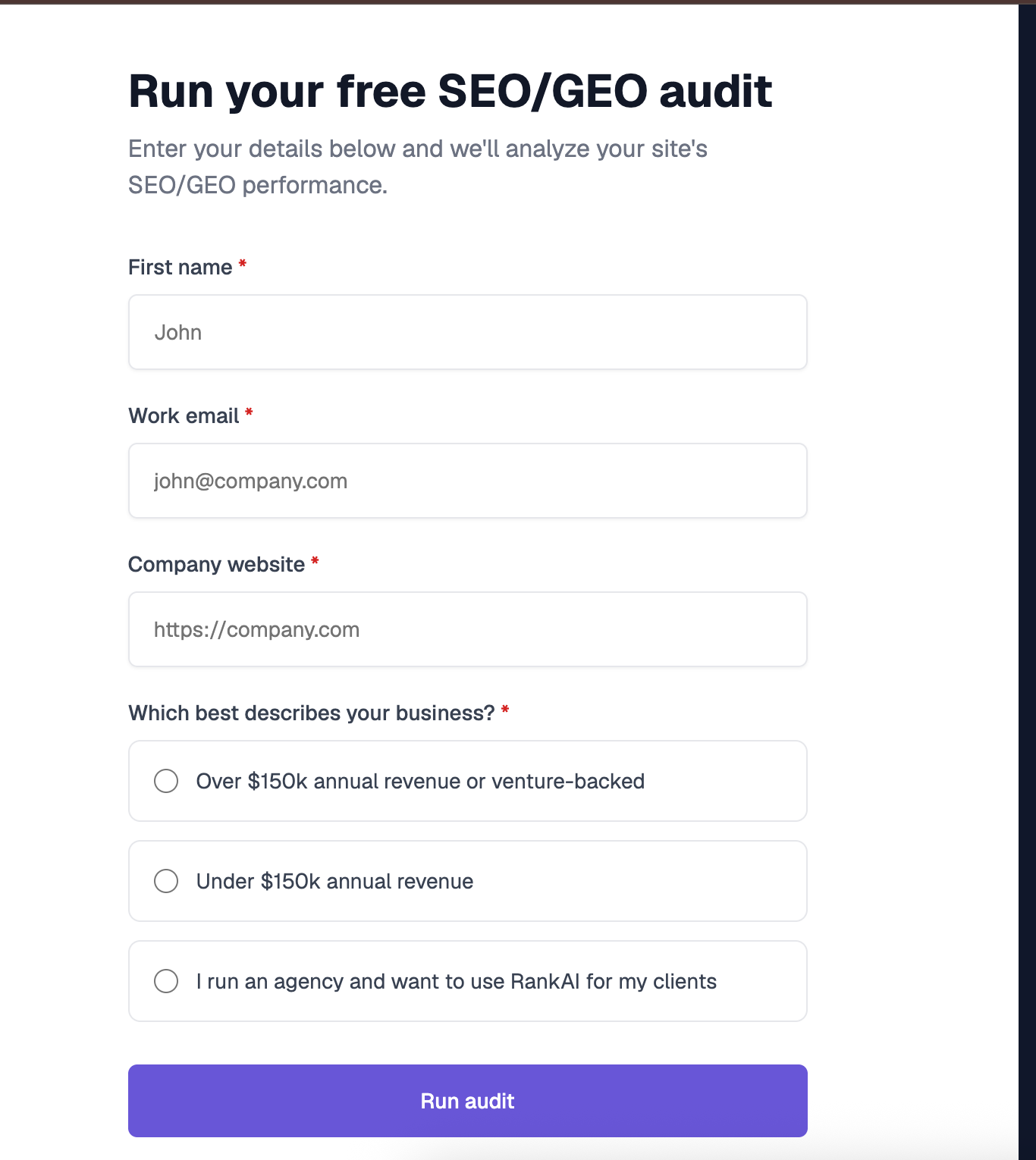
Enter your first name, work email, and company website, pick the option that best describes your business, and click Run audit. You get a far more detailed AI visibility analysis, still completely free, including a full, prioritized SEO and GEO optimization checklist.
What to do with your results
Once you can see your card, the highest impact moves are usually:
- Set a proper OG image. Use a clear image at the recommended dimensions so the card never renders blank.
- Write a share-worthy title and description. Make the card promise something worth clicking.
- Test before you post. Preview the card so the first share looks right the first time.
Re preview after editing your tags to confirm the card displays cleanly.
