This guide shows you how to add RankAI's technical SEO script to your Framer site. The script runs in the background on your site and helps search engines understand your pages better. You don't need any coding experience. We'll add one block of code in Framer's Site Settings under Custom Code and save.
Where to get your code
In your RankAI project, go to Technical SEO & GEO and look for the Apply Changes button at the top right and Click it. Select Framer as the provider. snippet of code that looks like the one below. Copy the whole thing. Your version will have your own project ID in it.
<script src="https://rankai.ai/apply.js" data-rankai-id="YOUR_PROJECT_ID" crossorigin="anonymous" defer></script>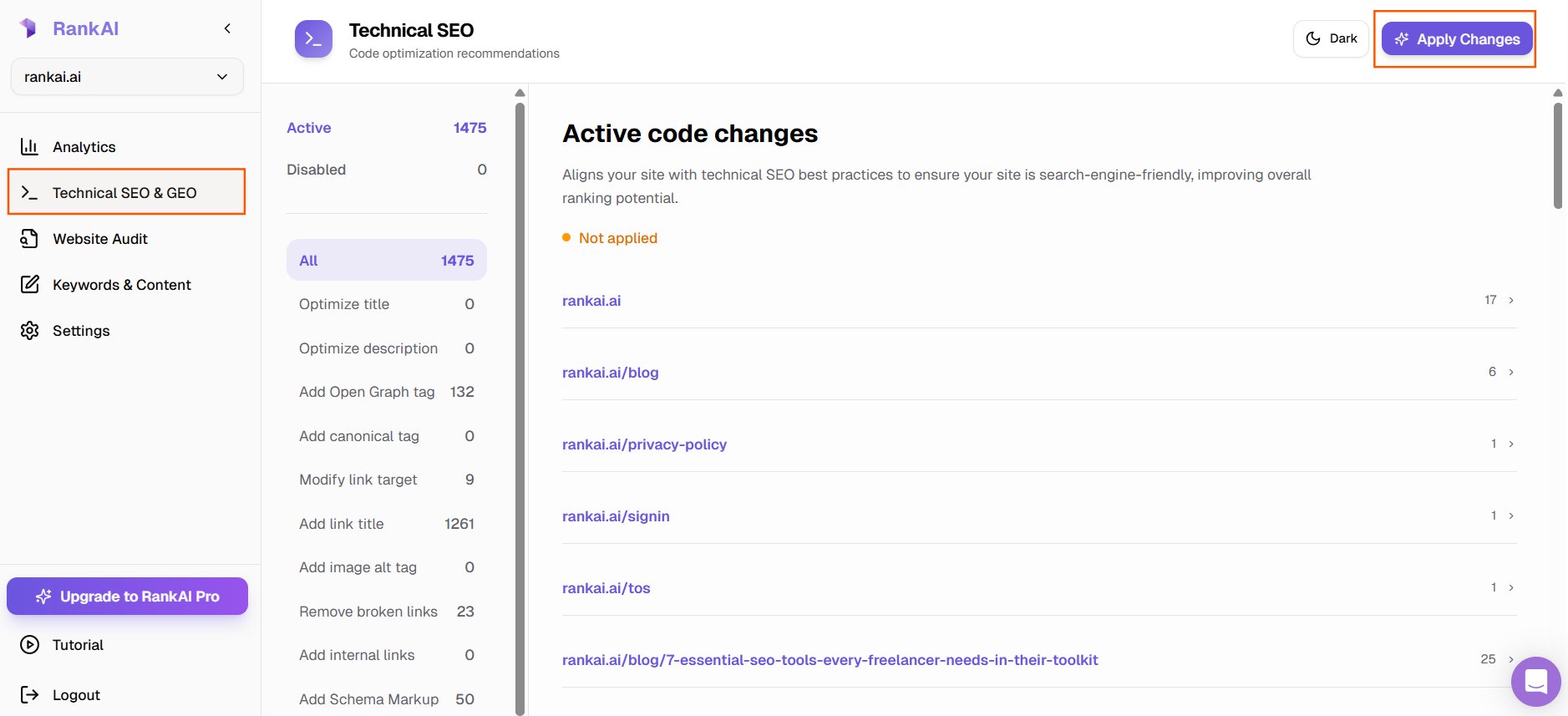
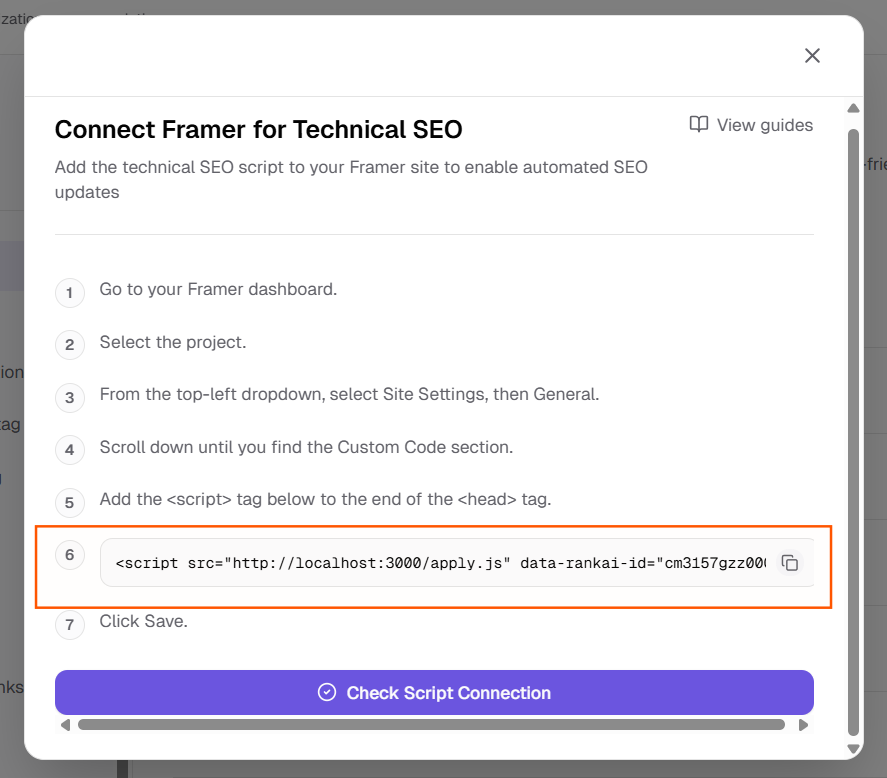
Keep that code handy. In the next steps we'll add it to your Framer site so it loads on every page.
Step 1: Go to your Framer dashboard
Open your browser and go to framer.com. Log in if you aren't already. You'll see your dashboard with a list of your projects (sites). That's the screen where you can open or manage your Framer sites.
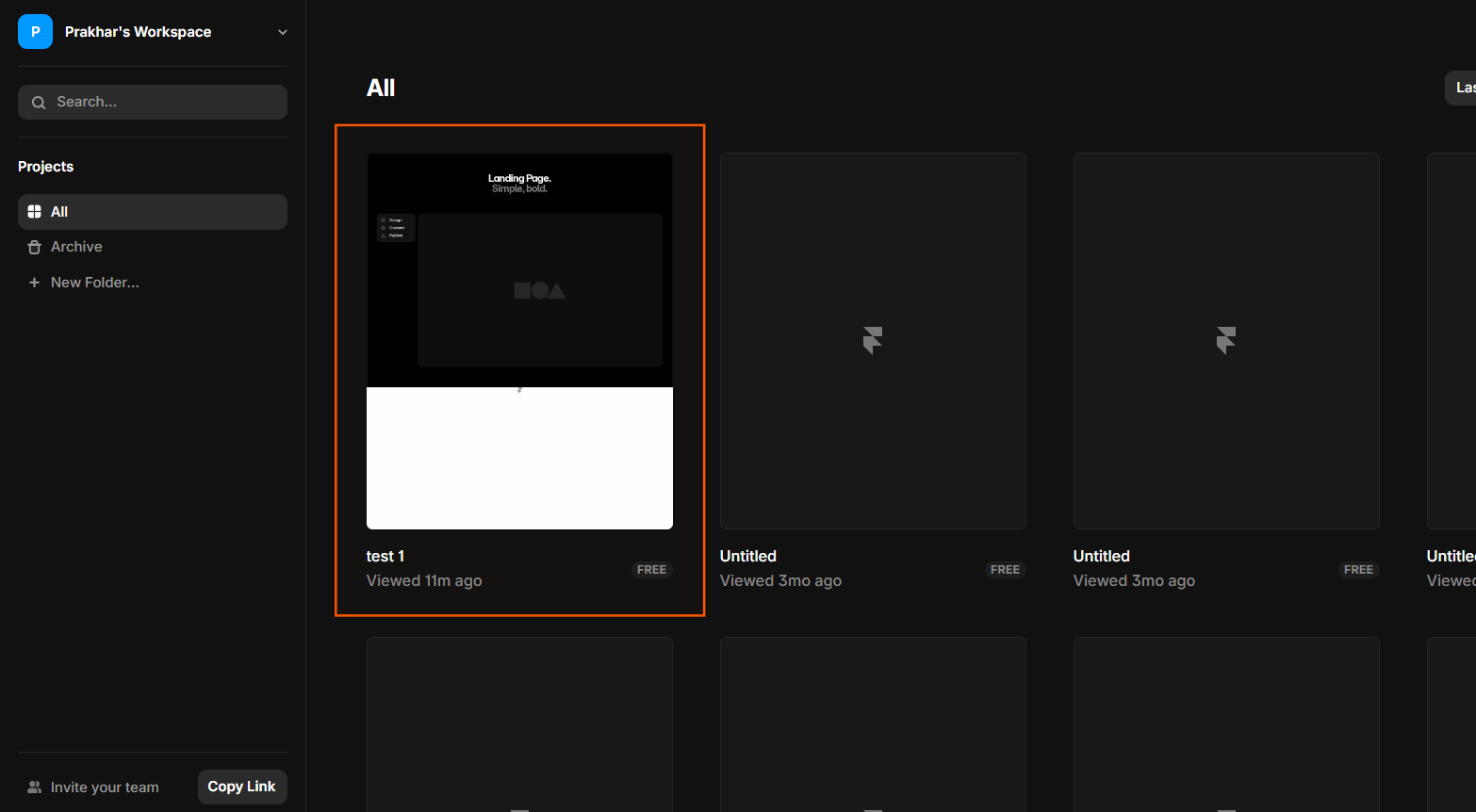
Step 2: Select the project
Click on the project (site) you want to add the RankAI script to. The project will open, usually in the Framer editor. You need to be inside the project to reach Site Settings in the next step.
Step 3: Open Site Settings, then Custom Code
In the top-left area of the screen you'll see a dropdown. Click that dropdown. In the menu that opens, select Site Settings. Then click Custom Code in the settings panel or sidebar.
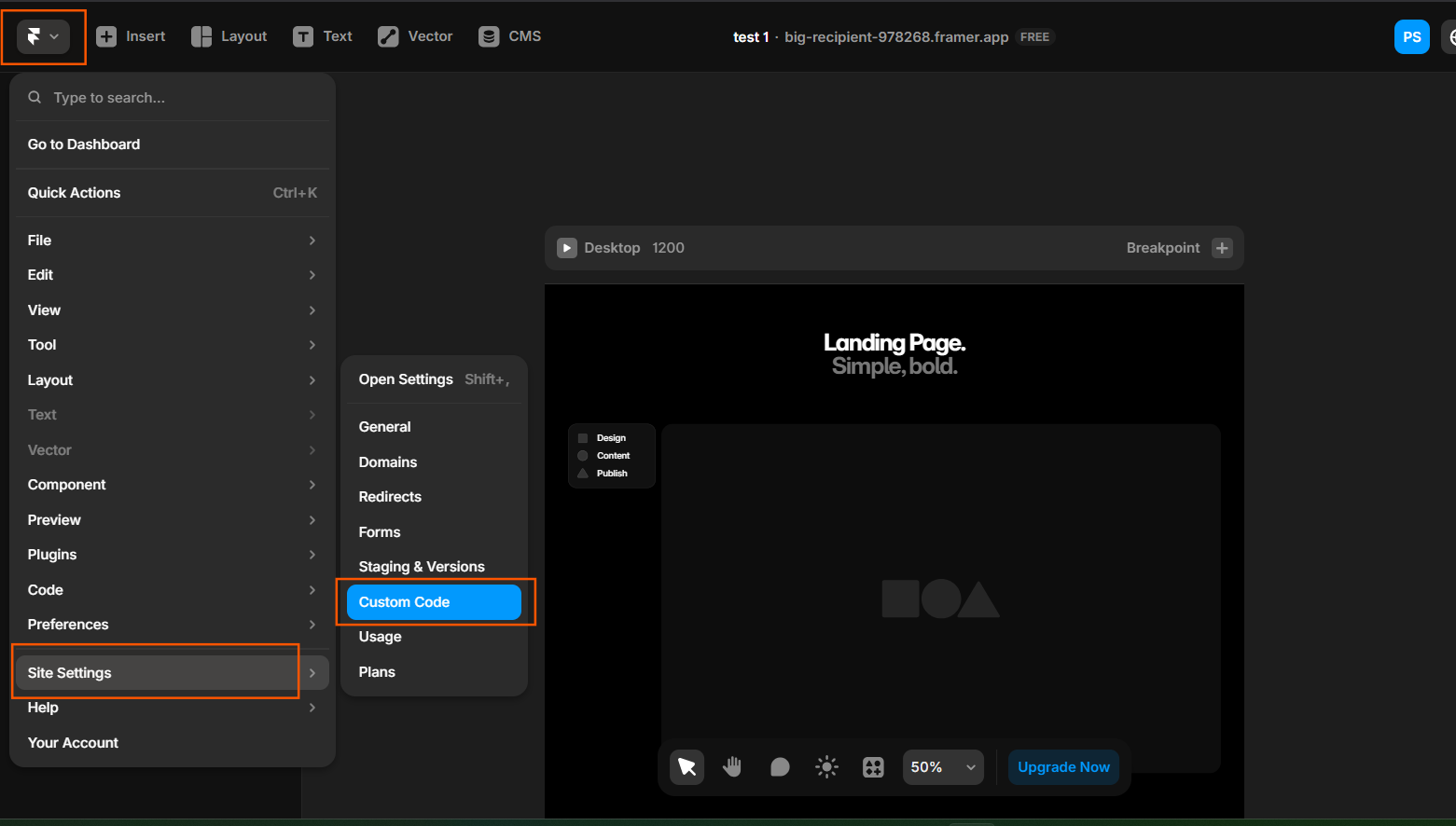
Step 4: Add Custom Code
Click the + on the right end of scripts heading.
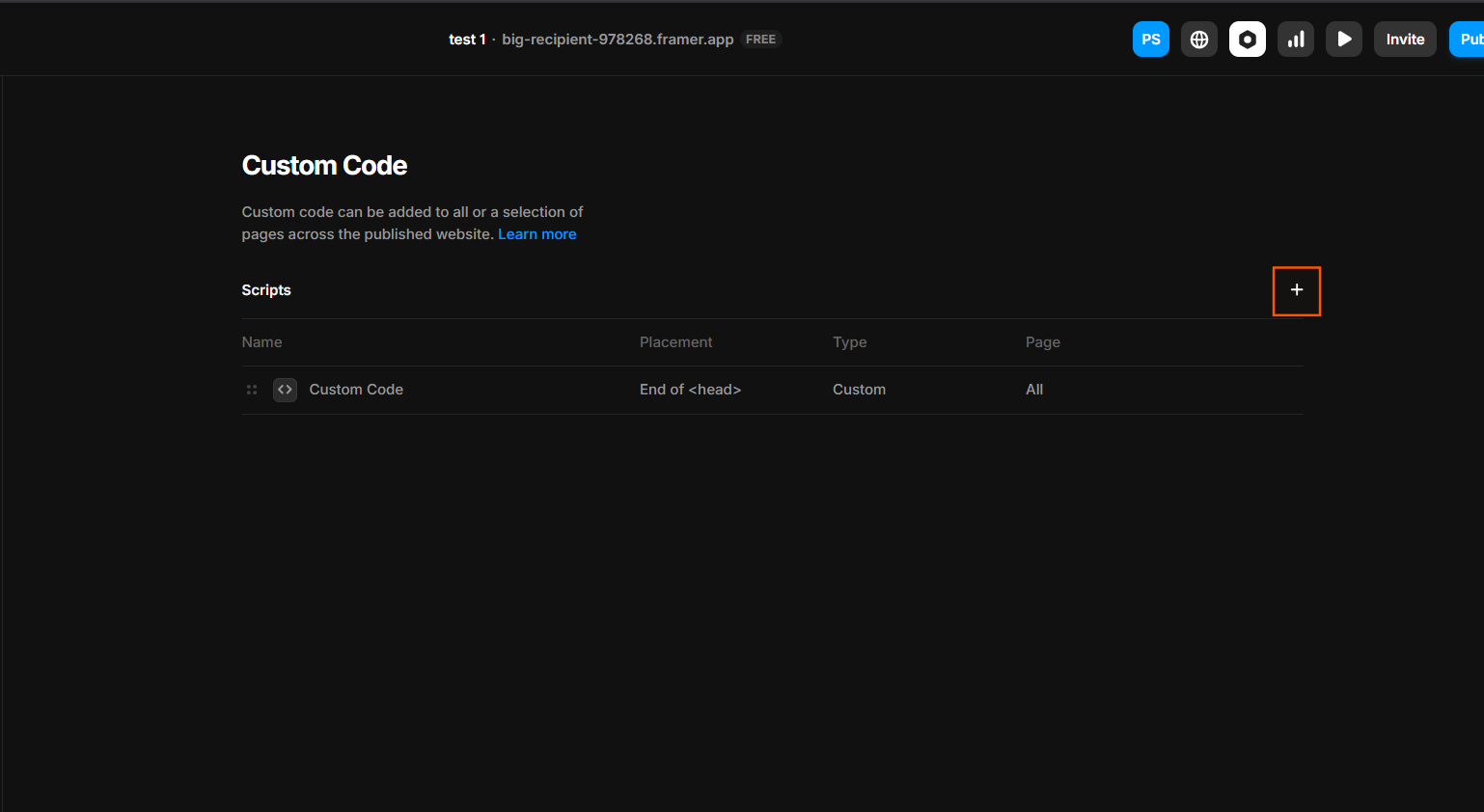
Step 5: Add the script to the end of the <head> tag
In the Custom Code section, Give it the Name Rankai Script, Set Placement to End of </head> and paste the code you copied from RankAI to Code field.
Make sure you paste the entire line, from <script to </script>. Don't change or remove any part of it. If you already have other code in the Head field (for example analytics), paste the RankAI script on a new line above or below it.
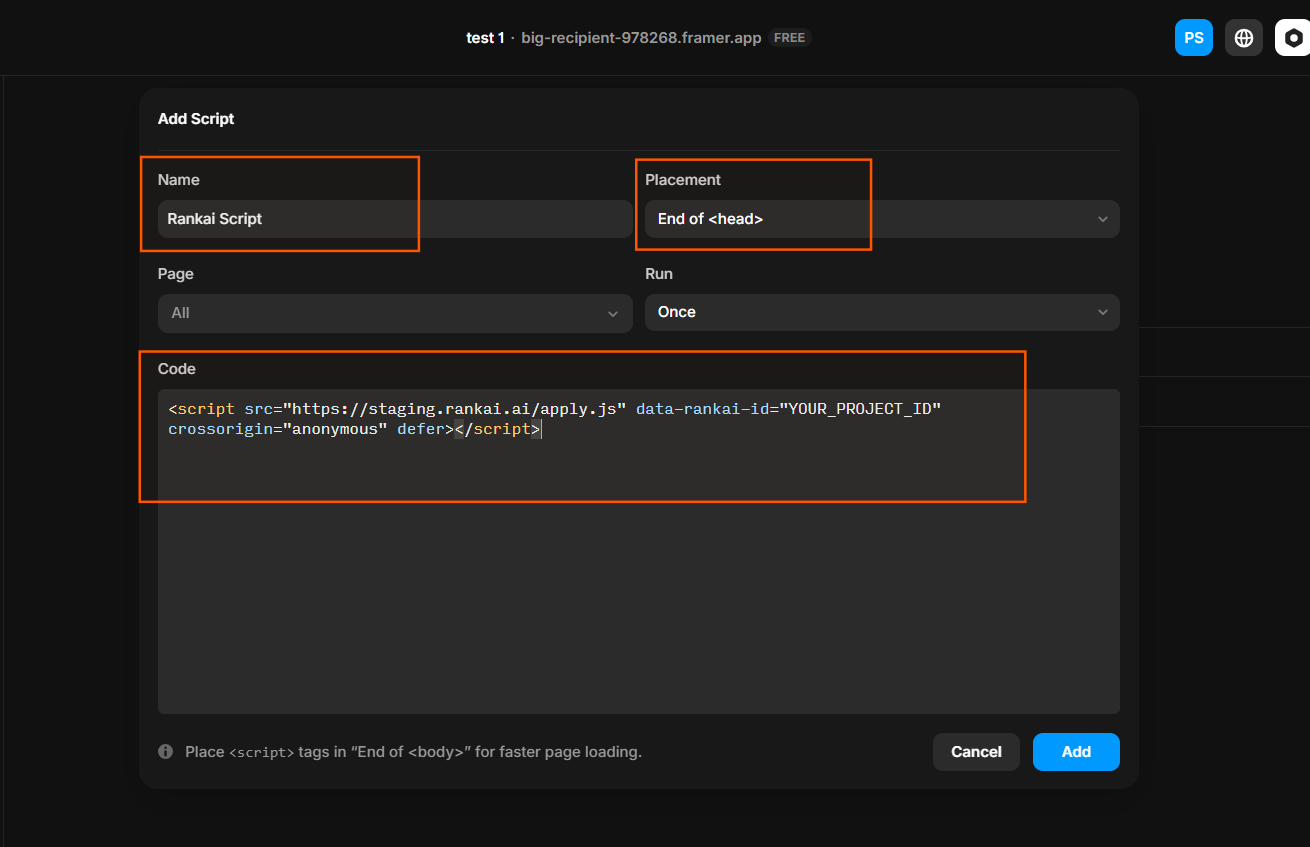
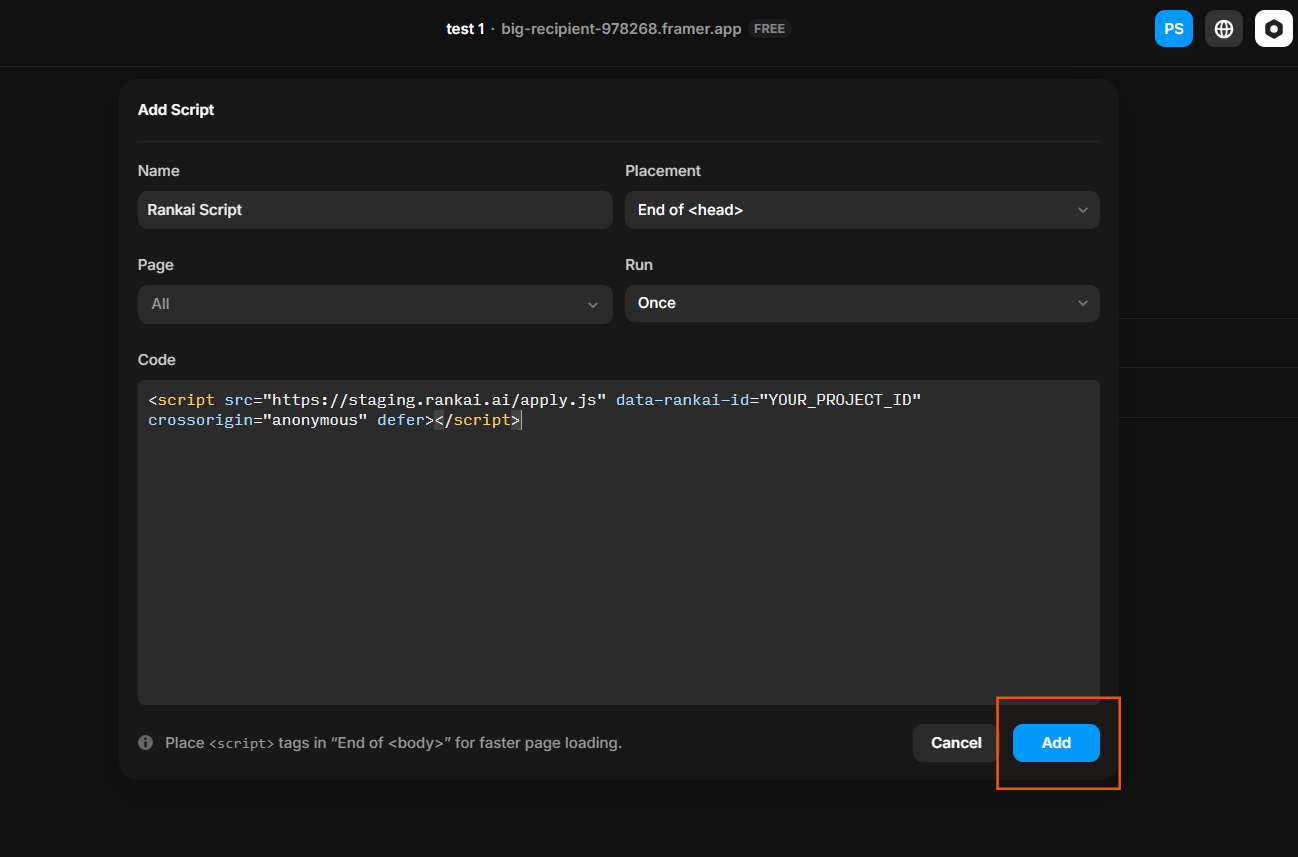
Step 6: Click Add
Click the button Add at the bottom the popup. Wait until you see a message that your changes were saved.
That's it. The RankAI script is now on your Framer site and will load on every page. RankAI will use it to apply the technical SEO settings you've chosen in your project. You don't need to do anything else in Framer.
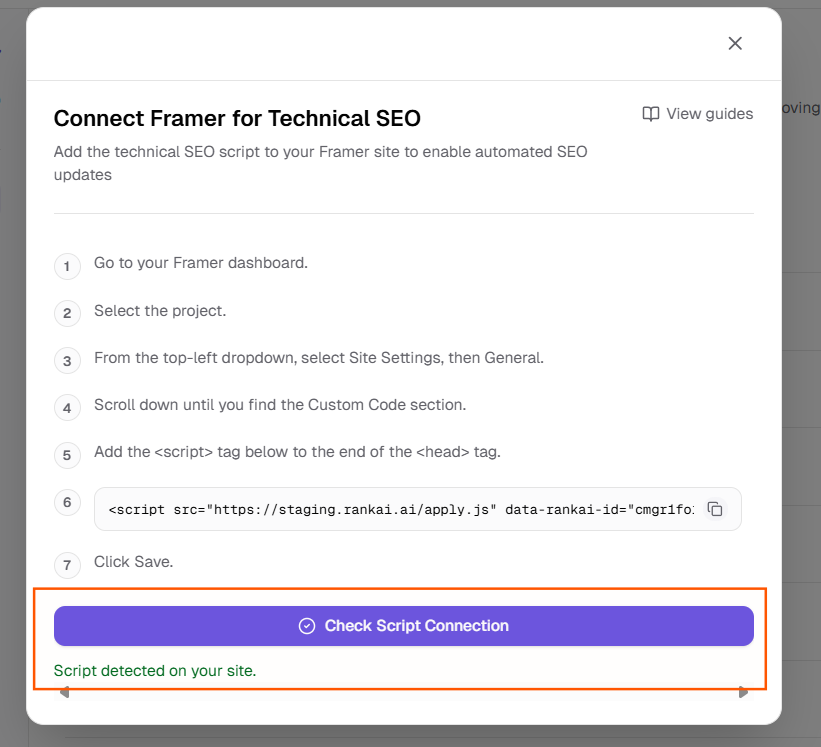
Step 7: Verify the script is installed correctly
Now go to RankAI tab again and click Check Script Connection. If you see a text in green saying Script detected on your site, the script is connected correctly.
Quick checklist
- Went to your Framer dashboard
- Selected the project (site)
- Opened the top-left dropdown → Site Settings → General
- Scrolled to the Custom Code section
- Pasted the full script into the Head / end of <head> field
- Clicked Save
- Checked script connection in RankAI (Check Script Connection)
FAQ
Should the script go in the Head or the body/footer?
Use the Head option (or "End of <head> tag"). That way the script loads at the top of the page as intended. Framer may also offer a body or footer code area; for RankAI, use the Head section.
I don't see Custom Code in Site Settings. Where is it?
Custom Code is under Site Settings → Custom Code. Open the top-left dropdown, choose Site Settings, then Custom Code.
How do I know if it's working?
After saving, open your published site in a new tab. You can use your browser's "View page source" option (usually right-click then View Page Source) and search for "rankai" or "apply.js". If you see the script in the source code, it's loaded correctly.
Where can I get more support?
Contact your RankAI account team or check the help section in your dashboard.