Think of a 301 redirect as a permanent change-of-address form for a webpage. It’s a simple, powerful instruction that tells browsers and search engines, “This page isn't here anymore; it has moved for good to this new location.” Getting this right isn't just a technical chore—it's a fundamental part of keeping your website healthy and your traffic flowing.
Why 301 Redirects Are So Important for SEO
When you move or delete a page, you risk losing all the hard-earned authority it has built up over time. This authority, often called “link equity,” is the value passed from all the other websites that link to your page. Without a proper redirect, that value simply vanishes. The new page is forced to start from scratch, and your search rankings can take a nosedive.
A 301 redirect is your way of telling search engines to transfer that link equity from the old URL to the new one. It’s about more than just preventing "Page Not Found" errors; it’s about protecting the ranking power you’ve worked so hard to build.
Common Scenarios Where You'll Need Redirects
You’ll find yourself reaching for a 301 redirect in a few very common situations. Each one is a critical moment for your SEO.
- Migrating to HTTPS: When you finally make the switch from
http://tohttps://, every single URL on your site needs a 301 redirect to its new, secure version. - Changing Your Domain Name: Moving your entire website to a new domain is a huge step. Sitewide 301s are absolutely essential to guide users and search engines to your new home.
- Restructuring Your Site: If you reorganize your content—say, changing a URL from
/blog/my-postto/articles/my-post—redirects are the only way to bridge the gap. - Consolidating Content: Maybe you have two similar blog posts. If you merge them into one epic guide, you must 301 redirect the old, retired post to the new, more comprehensive one.
In every case, the goal is the same: ensure a smooth transition for both your visitors and the search engine crawlers, making sure no one gets lost along the way.
Choosing the Right Redirect Type
It's easy to think all redirects are the same, but using the wrong one can send confusing signals to search engines. A 301 is for permanent moves, but what about temporary changes? This table breaks down the most common types and when to use them.
| Redirect Type | Use Case | SEO Impact |
|---|---|---|
| 301 (Permanent) | A page has moved for good. Use for domain changes, HTTPS migration, or permanently merging content. | Passes the vast majority of link equity to the new URL, preserving your rankings. |
| 302 (Temporary) | The page is moved temporarily. Good for A/B testing a new page or redirecting users during site maintenance. | Signals to search engines that the original page will be back, so they shouldn't pass link equity. |
| Meta Refresh | Not a true redirect. It's a client-side instruction that refreshes a page or sends the user to a new one after a set time. | Slow, bad for user experience, and can be seen as spammy. Passes little to no link equity. Avoid for SEO. |
Ultimately, unless you have a specific, short-term reason, the 301 redirect is almost always the right choice for protecting your SEO.
Preserving Your Hard-Earned Link Equity
The most significant SEO benefit of a 301 redirect is its power to pass link equity. Thankfully, the old days of losing a chunk of your ranking power are gone. Back in 2016, Google confirmed that 301s (and other permanent redirects) no longer cause a loss of PageRank.
When you implement a 301 correctly, nearly all of the ranking signals—including the value from those 50 high-quality backlinks you earned—get funneled to the new page. You can read more about how 301s preserve SEO value on Rankability. This direct transfer of authority is what maintains your search visibility and prevents the frustrating 404 errors that can erode user trust.
Key Takeaway: A 301 redirect is your primary tool for telling search engines, "Hey, all the authority this old page had? It belongs over here now." This single instruction is what separates a successful site migration from an SEO disaster. It ensures that the trust and relevance you've built over time are not just maintained but actively transferred.
Building Your Strategic Redirect Map
Diving headfirst into editing server files without a plan is one of the quickest ways to turn a simple site update into an SEO catastrophe. Before you write a single line of code, you absolutely need a blueprint. This blueprint is your redirect map—a detailed spreadsheet that acts as the single source of truth for your entire project.
Think of it as the architectural plan for your website’s new structure. It’s what ensures every old page has a designated new home, preventing lost traffic and preserving the valuable authority you’ve spent years building. Without this map, you’re just guessing, and those guesses can be costly.
Starting with a Full Site Inventory
First things first: you need a complete list of every single URL on your current website. It’s simple—you can’t redirect what you don’t know exists. For this, a site crawler is your best friend.
Tools like Screaming Frog or the Semrush Site Audit feature can crawl your entire site, just as Google does, and export a comprehensive list of all your URLs. This isn't just about your main pages; a good crawl will uncover old blog posts, forgotten landing pages, and even URLs with parameters you didn't realize were getting indexed.
This initial export becomes the first column of your redirect map spreadsheet: "Old URL."
Mapping Old URLs to New Destinations
With your list of old URLs in hand, the real strategic work begins. Your goal here is to map each old URL to the most relevant new URL on a one-to-one basis. This is where I see people make the same critical mistake over and over again.
The single biggest error is mass-redirecting everything to the homepage. It’s a lazy approach that tells search engines the old content is gone, effectively deleting its specific authority and creating a frustrating experience for anyone who lands there.
Instead, you need to be meticulous. Carefully match each old page to its direct replacement.
your-site.com/old-service-page/should go toyour-site.com/new-service-page/.your-site.com/blog/2021/my-postshould map toyour-site.com/articles/my-post.- What if a page is being deleted and has no direct equivalent? Redirect it to the next most relevant page, like its parent category page—never the homepage.
This diagram illustrates the ideal flow for a successful 301 redirect.
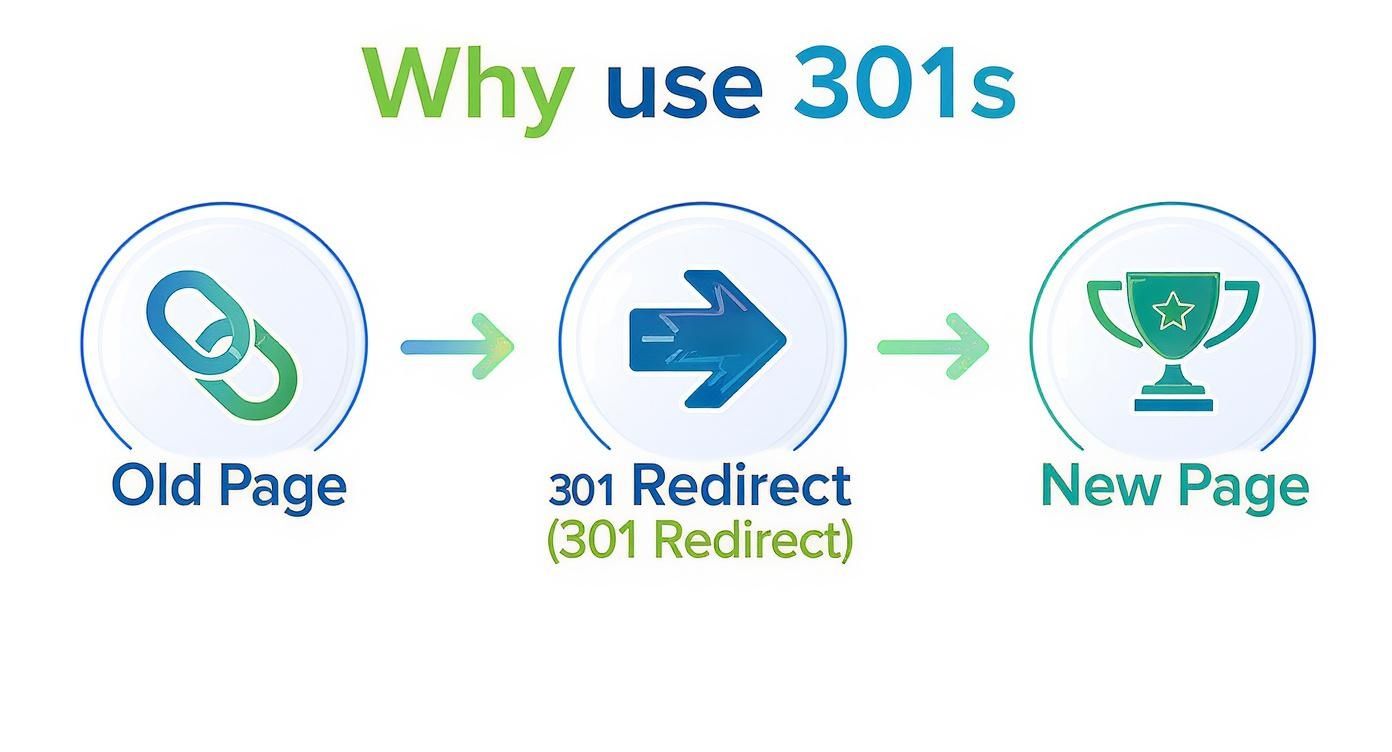
As you can see, the process ensures that the authority and value from the old page are properly funneled through the redirect to empower the new, optimized page.
Prioritizing Your High-Value Pages
Let's be honest, not all pages are created equal. Some of your URLs are SEO powerhouses, driving significant traffic and holding valuable backlinks. These need your immediate and most careful attention.
I always recommend enhancing your redirect map by adding columns for key metrics like:
- Organic Traffic: Pull this from Google Analytics to identify your top-performing pages.
- Backlinks: Use a tool like Ahrefs or Moz to see which pages have the most inbound links pointing to them.
- Keyword Rankings: Note the primary keywords each page ranks for.
By sorting your map by these metrics, you can immediately see which URLs are mission-critical. This focused approach is foundational to any modern SEO strategy. It's about being disciplined—identifying your high-authority pages first and creating a detailed plan that maps old URLs to their new homes to preserve traffic and rankings.
This entire mapping process is non-negotiable for any successful site transition. For larger projects, you can see how this fits into the bigger picture in our zero-downtime guide for website migration services. Your meticulously planned map will be the document you refer to constantly during implementation, making the technical steps smoother and far less prone to error.
Alright, you've done the strategic work and your redirect map is ready to go. Now it's time to roll up your sleeves and get technical. This is where you tell your server how to handle all those old URLs, ensuring every visitor and search engine bot lands exactly where you want them to.
The how depends entirely on your website's setup. Don't worry, whether you're comfortable editing server files directly or would rather use a simple plugin, there's a solid path forward.

Apache Servers: Editing the .htaccess File
For the countless websites running on Apache servers, the .htaccess file is your best friend. Think of it as a set of instructions the server reads before it does anything else. You'll find this plain text file in your site's root directory.
First things first, you'll need to access it. You can do this with an FTP client (like FileZilla) or your host's file manager. Can't see it? It's likely because files starting with a dot are hidden by default, so be sure to enable "show hidden files" in your settings.
Redirecting a Single Page This is your bread and butter. The syntax is surprisingly simple but powerful.
Redirect 301 /old-page.html https://www.yourdomain.com/new-page/
This one line tells the server: anyone trying to visit /old-page.html should be sent immediately and permanently to the new /new-page/. Always use the complete, absolute URL for the destination—it leaves no room for error.
Redirecting an Entire Directory
Let's say you've moved your entire blog from a /blog/ folder to /articles/. You don't need to redirect every single post individually. This one-liner handles the whole directory.
RedirectMatch 301 ^/blog/(.*)$ https://www.yourdomain.com/articles/$1
This uses a small piece of regular expression (Regex) to catch everything that comes after /blog/ and neatly appends it to the new /articles/ path. It's a massive time-saver for big site restructures.
Nginx Servers: Configuring Redirect Rules
Nginx is the other major player in the web server world, prized for its speed and efficiency. It doesn't use .htaccess files. Instead, you'll typically make changes in the main nginx.conf file or a domain-specific file located in your server's configuration directory. Getting to this usually requires SSH access.
Nginx gives you a couple of clean ways to set up 301s. The return 301 directive is the most direct and performant option.
Using return 301
For a straightforward page-to-page redirect, locate the server block for your site in the configuration file and add this:
location = /old-page.html {
return 301 https://www.yourdomain.com/new-page/;
}
This code is incredibly efficient. It tells Nginx to stop what it's doing the moment it sees an exact request for /old-page.html and just send back the 301 redirect.
If you need to match more complex URL patterns, the rewrite directive is your go-to. It also leverages Regex to redirect groups of URLs at once.
rewrite ^/products/(.*)$ https://www.yourdomain.com/store/$1 permanent;
The permanent flag at the end is absolutely essential here; it’s what tells Nginx to issue the 301 status code.
Pro Tip: Before you touch any server configuration file like
.htaccessornginx.conf, always make a backup. A single misplaced character can bring your entire site down. Having a clean copy to restore from can save you a world of panic.
WordPress: Managing Redirects with Plugins
If your site is built on WordPress, you can breathe a sigh of relief. You don't need to dig into server files at all. A handful of fantastic plugins give you a simple, clean interface to manage everything right from your admin dashboard. For most users, this is the safest and easiest way to go.
Here are a couple of the best options out there:
- Redirection: This free, dedicated plugin is a long-time favorite in the WordPress community. Its best feature is a built-in log of all 404 errors, which shows you exactly which broken links visitors are hitting so you can redirect them.
- Rank Math or Yoast SEO: If you’re already using a comprehensive SEO plugin like Rank Math or Yoast SEO, there's a good chance it has a redirect manager built right in. This keeps all your SEO tools in one convenient place.
Using a plugin completely removes the risk of crashing your site with a bad server config. It turns the task of implementing your redirect map into a simple copy-and-paste exercise.
cPanel: A Simple GUI for Redirects
Many hosting providers offer cPanel, a graphical interface that makes server management much more approachable. It includes a "Redirects" tool that lets you create 301s without writing a single line of code.
Here's how it generally works:
- Log into your cPanel dashboard.
- Find the "Domains" section and click on the Redirects icon.
- For the "Type," make sure you select Permanent (301).
- In the source field, enter the old URL path you want to redirect.
- In the destination field, paste the full new URL.
- Click Add, and you're done.
What cPanel does behind the scenes is write the correct .htaccess rule for you. It's a foolproof way to get the job done without the risk.
Jamstack Sites: Redirects as Code
Modern Jamstack sites built with frameworks like Next.js or Astro and hosted on platforms like Netlify or Vercel handle redirects in a totally different—and very cool—way. Instead of a server setting, redirects are defined in a simple configuration file that lives alongside your website's code.
On Netlify, for instance, you just create a _redirects file in your project's root folder. The syntax is wonderfully clean.
/old-post /new-post 301
Redirect an entire section using a splat
/blog/* /articles/:splat 301
When you deploy your site, Netlify reads this file and configures the redirects automatically. Vercel has a similar system using a vercel.json file. This approach treats your redirects as part of your codebase, which means they are version-controlled and deployed right along with your site—a perfect fit for a modern developer workflow.
Testing and Verifying Your Redirects
You've mapped everything out and pushed your redirects live. It’s a huge step, but the job isn't quite done. Implementing redirects without checking them is like launching a rocket and just hoping it reaches its destination. This final quality check is what separates a smooth transition from a potential SEO mess.
Now it's time to confirm that every single redirect is working exactly as planned. We need to check the status codes, verify the destinations, and hunt down any performance-killing errors before they can do any real damage.

Using Browser Developer Tools
One of the quickest ways to check a single redirect is right in your web browser. Chrome, Firefox, and Edge all come with powerful Developer Tools that give you an instant look under the hood.
Here’s how I do it:
- First, open a new Incognito or Private browser window to make sure your cache isn't interfering.
- Press F12 (or Cmd+Option+I on Mac) to pop open the Developer Tools panel.
- Find and click on the "Network" tab.
- This is a crucial step: tick the "Preserve log" checkbox. This lets you see the full redirect path from start to finish.
- Finally, paste your old URL into the address bar and hit Enter.
You should see at least two lines appear in the network log. The first will be your old URL with a Status Code of 301. The second will be the new destination URL with a 200 OK status. If you see that sequence, your redirect is working perfectly.
Leveraging Online Redirect Checkers
For a more focused and often faster approach, free online tools are your best friend. Sites like Redirect Checker or WhereGoes let you paste in a URL and get a clean, step-by-step report of the entire redirect process.
I often use these tools for spot-checking high-priority URLs because they:
- Clearly show the HTTP status code (301, 302, etc.).
- Instantly reveal the full chain of redirects if one exists.
- Aren't influenced by your local browser cache or cookies.
This gives you undeniable proof that the server is doing exactly what you told it to do.
Hunting for Redirect Chains and Loops
Two of the most damaging errors you can find are redirect chains and loops. They absolutely wreck the user experience and can significantly dilute your SEO authority. A thorough check to find and fix them is non-negotiable.
- Redirect Chains: This is when URL A redirects to URL B, which then redirects to URL C. Each "hop" adds latency, slowing your site down for users and wasting Google's crawl budget. The goal is always a single, direct hop from the old URL to the final one.
- Redirect Loops: This is a showstopper. It happens when a page redirects back to itself (e.g., A -> B -> A), creating an infinite loop that makes the browser time out. It renders a page completely inaccessible to both people and search engines.
A redirect should be a direct flight, not a journey with multiple layovers. Every extra step in a redirect chain is a tax on your site's performance and SEO. Find them and eliminate them by pointing the original URL directly to the final destination.
Checking Google Search Console
After you've confirmed your redirects are technically sound, it’s time to see things from Google’s perspective. The URL Inspection tool in Google Search Console is your direct line to how Googlebot sees your site.
Just pop one of your old, redirected URLs into the inspection tool. You should get a report that says something like "URL is not on Google: Page with redirect." This is exactly what you want to see. It’s Google confirming it understands the 301 and has updated its index accordingly.
Over the next few weeks, keep an eye on the "Pages with Redirect" report under the Indexing section. As Google recrawls your old pages, this number should go up, showing that your changes are being processed site-wide. This kind of systematic verification is a core part of any good technical audit. For a deeper dive, see our ultimate guide to performing a technical SEO audit. It ensures your hard-earned SEO value is preserved and passed to your new pages.
Common 301 Redirect Errors and How to Fix Them
Even with careful planning, things can sometimes go wrong. Here's a quick guide to some of the most common issues I've seen over the years and how to squash them.
| Error | Symptom | Solution |
|---|---|---|
| Redirect Chain | The URL goes through multiple hops (A→B→C) before reaching the final page, slowing down the site. | Update the initial redirect (A) to point directly to the final destination (C), bypassing the intermediate steps. |
| Redirect Loop | The browser shows a "too many redirects" error, and the page never loads. | Identify the URL that redirects back to a previous URL in the chain and fix the rule to point to the correct final destination. |
| Incorrect Status Code | A 302 (temporary) is used instead of a 301 (permanent), preventing link equity from passing. | Edit the redirect rule in your server configuration or plugin to specify a 301 status code. |
| 404 After Redirect | The redirect points to a page that doesn't exist, resulting in a 404 Not Found error. | Verify the destination URL in your redirect map is correct, live, and returns a 200 OK status. Update the rule with the correct URL. |
| Mixed Content Warning | An HTTP URL redirects to an HTTPS URL, but the destination page loads insecure (HTTP) resources. | Ensure the redirect rule points to the HTTPS version. Then, run a crawl on the destination page to find and update any HTTP assets (images, scripts) to HTTPS. |
Troubleshooting is a normal part of the process. By knowing what to look for, you can quickly diagnose and fix these issues, ensuring your redirects work perfectly for both users and search engines.
Advanced Redirect Strategies for SEO Pros
Once you've got the hang of redirecting one page to another, it's time to level up. The real power comes from learning techniques that let you manage huge site changes efficiently, saving you a ton of time while maximizing your SEO impact. This is where you go from just doing redirects to truly mastering technical SEO.
Taming Wild URLs with Regex
One of the most powerful tools in any SEO's kit is the regular expression, or Regex. Don't let the name intimidate you. At its core, Regex is just a way to define a search pattern, allowing you to handle thousands of URL changes with just a few lines of code.
Let's say you're migrating an e-commerce site and changing the URL structure from /products/ to a cleaner /shop/. Instead of creating a separate redirect for every single product page (which could be hundreds or thousands), you can use a single Regex rule in your .htaccess file.
RewriteEngine On RewriteRule ^products/(.*)$ /shop/$1 [R=301,L]
This one line is pure magic. It grabs whatever comes after /products/ and simply tacks it onto the new /shop/ path. Just like that, you've redirected an entire category of pages. Getting comfortable with even basic Regex will save you countless hours on big projects.
The Job Isn't Done: Post-Launch Cleanup
Putting the redirects live is a huge milestone, but it's really only half the job. What you do after they're implemented is just as critical for signaling the changes to search engines and keeping users happy. Too many people skip these cleanup steps and leave SEO value on the table.
Your first move should always be to update your XML sitemap. Think of your sitemap as a direct message to Google, telling it which pages matter most. As soon as your redirects are active, generate a fresh sitemap that contains only the new, final destination URLs.
Submitting this updated sitemap through Google Search Console gives Google's crawlers a clear roadmap, helping them find and index your new pages much faster.
Next, you need to go on an internal link hunt. Every link on your own site should point directly to the new URL, not the old one. Sure, the redirect will get the user and the crawler there eventually, but it forces an extra, unnecessary step.
Every internal link that hits a redirect adds a little bit of latency. It's a small delay, but it adds up across your site, slowing things down and eating into your crawl budget.
Fixing these links ensures link equity flows directly and efficiently. It’s a tedious but essential process. If you need help managing this, check out our internal linking tool buyer's guide to find the right software for the job.
Long-Term Care and Feeding of Your Redirects
Redirects aren't a "set it and forget it" task. Over time, your redirect file—whether it's .htaccess or a plugin's database—can get bloated with old rules, which can actually slow down your server response time. It’s a good habit to review your redirects every six months or so and clean out any that are no longer needed.
Don’t forget that redirects have a direct impact on your Core Web Vitals. Every single redirect adds a network round-trip, which can hurt metrics like Largest Contentful Paint (LCP). This is why eliminating redirect chains and fixing those internal links is so important for keeping your site fast.
The payoff for being meticulous is huge. The music label Nuclear Blast, for example, saw a massive 227% year-over-year jump in organic traffic after a site migration. Their secret? A painstakingly detailed 301 redirect and URL mapping strategy. Their success shows that if you do it right, you can not only prevent traffic loss but actually grow from a migration. Rushing it, on the other hand, is a surefire way to dilute your authority and tank your rankings.
Frequently Asked Questions About 301 Redirects
Even after you've got the basics down, a few questions always seem to surface. Let's tackle some of the most common ones I hear about 301 redirects to clear up any lingering confusion.
What's the Difference Between a 301 and a 302 Redirect?
The real difference comes down to one thing: permanence.
A 301 redirect is a permanent move. You’re essentially telling search engines, "This page has moved for good. Please update your index and pass all its authority to this new URL." This is your go-to for site migrations, consolidating content, or permanently changing a URL structure.
On the other hand, a 302 redirect is temporary. It says, "Hold on, this page is just gone for a little while, but it'll be back. Don't make any permanent changes." This is perfect for things like A/B testing a landing page or redirecting users while your site is down for a quick maintenance session.
How Long Should I Keep 301 Redirects in Place?
The rule of thumb I always follow is to keep them active for at least one year. This gives Google and other search engines more than enough time to crawl the old URL, process the permanent move, and correctly transfer all that hard-earned ranking power to the new page.
Keeping them up longer doesn't hurt, either. It helps catch any users clicking on old bookmarks or outdated links from other websites. Unless you have thousands of redirects creating a server performance issue, it's often best to just leave them be.
My Take: I like to think of a 301 redirect like a mail forwarding service from the post office. You wouldn't cancel it a week after you move, right? You leave it active long enough to ensure every last piece of mail finds its way to your new address.
Do Too Many 301 Redirects Slow Down My Website?
They definitely can. While a single redirect is barely noticeable, each one forces the browser to make an extra round trip to the server, adding a bit of latency. When you have a lot of them, that latency starts to add up.
The real killer is a redirect chain, where Page A redirects to Page B, which then redirects to Page C. Each one of those "hops" adds a delay, which can hurt your Core Web Vitals and frustrate your users. Your goal should always be to minimize redirects and make sure every redirect points directly to the final destination URL.
Can I Redirect an Entire Domain Using a 301 Redirect?
You bet. A 301 redirect is exactly the right tool for the job when you're moving your entire site from one domain to another.
This is usually done with a single, powerful rule on your server. It’s a blanket instruction that tells browsers and search engines that every single page on old-site.com has permanently moved to its new home on new-site.com. This is critical for making sure your site's history and SEO authority come with you.
Ready to stop worrying about redirects and start seeing reliable SEO growth? Rankai uses AI-powered content strategy and expert oversight to get your business ranking for the keywords that matter. We handle the technical details so you can focus on results. See how we drive compounding organic traffic at https://rankai.ai.